
Product
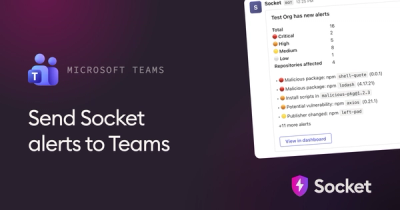
Microsoft Teams Notifications Are Now Available in Socket
Socket can now send alerts and supply chain attack notifications to Microsoft Teams, with filters that route the right updates to each channel.
By Jeppe Hasseriis - Sep 01, 2026
@vibebrowser/mcp
Advanced tools
MCP server that drives your real, logged-in Chrome from any MCP client - including agents on a remote machine, with no inbound port open


MCP server for Vibe AI Browser — drive your real, logged-in Chrome from any MCP client, including agents running on a different machine with no inbound port open.
⚠️ Security — treat your relay URL/UUID like a password. A relay URL or extension UUID (
wss://relay.api.vibebrowser.app/<uuid>) grants live control of your browser session (read your tabs, take screenshots, read page content). Never share it, paste it into a chat with untrusted parties, or commit it to a repo. Every example UUID in this documentation is a non-routable placeholder (YOUR-EXTENSION-UUIDor00000000-0000-0000-0000-000000000000) — substitute your own secret value locally and keep it out of version control.
Paste the block below into your OpenClaw or Hermes agent. Replace the last line with your remote value — a UUID or a wss://relay.api.vibebrowser.app/<uuid> URL from the Vibe extension's Settings → AI Agent Control → Remote (internet) → Relay access. That's the only edit you make.
You are setting yourself up to control my real Chrome through Vibe Browser. Work through the steps in order, and after each step confirm it worked before moving on. Do not claim a step is done until you have proven it.

1. Install the "vibebrowser" skill for your runtime:
   - OpenClaw:  npx -y skills add VibeTechnologies/vibe-mcp -s vibebrowser -a openclaw -g -y --copy --dangerously-accept-openclaw-risks
                then run `openclaw skills list` and confirm a "vibebrowser" row shows "ready" as installer registration.
   - Hermes:    npx -y skills add VibeTechnologies/vibe-mcp -s vibebrowser -y
                optional installer registration check: `npx -y skills list` shows a "vibebrowser" row.

2. Remember my remote so I only give it to you once. Save it to a file `vibebrowser-cli.md` in your persistent agent workspace root (the directory that holds your `memory/` folder — not the shell's working dir, not $HOME unless they are the same) as a line `remote: <value>`; if your runtime can also write memory keys, additionally store it under `vibebrowser_remote`. On every later command — including the first message of a new conversation — load it back from that file and reuse it without asking me again.

3. Record a standing rule so you route correctly later: whenever I ask you to do anything in MY browser / MY Chrome / MY tabs / the page I'm on, use this vibebrowser skill (`npx -y @vibebrowser/cli@latest` with my saved remote) to drive my REAL browser — never your built-in, headless, or in-pod browser, never web-fetch instead, and never run `vibebrowser`. Save this rule wherever your standing instructions/memory live so it applies in future conversations.

4. Confirm you can control my Chrome, retrying on "Extension reconnecting" (wait 3s, up to 5x):
   npx -y @vibebrowser/cli@latest --remote "<my remote>" --json status --wait-for-extension --wait-timeout 20000
   npx -y @vibebrowser/cli@latest --remote "<my remote>" --json snapshot --format aria

Then report: (1) is extensionConnected true, (2) did the snapshot return my real page content?

My remote: <PASTE YOUR UUID OR wss:// URL HERE>
The browser-automation MCP space moved fast. Most of what used to differentiate us is now table stakes — so here is an honest scorecard. Where a competitor matches us, the column says Yes.
| Capability | Vibe MCP | Playwright MCP | Chrome DevTools MCP | Claude for Chrome | BrowserMCP |
|---|---|---|---|---|---|
| Uses your real profile / logged-in sessions | Yes | Yes (--extension) | Yes (own --user-data-dir) | Yes | Yes |
| No per-connection approval dialog | Yes | Yes (token) | Yes (dedicated profile only) | Yes | Yes |
| Real logged-in profile and no dialog, together | Yes | Yes | No — pick one | Yes | Yes |
| Multiple agents against one browser | Yes | Yes (--shared-browser-context) | Yes (--experimentalPageIdRouting) | No | No |
| Agent on another machine, no inbound port | Yes — extension dials out to a relay | No | No — needs an inbound debug port + forwarding | No | No |
| Works with any MCP client (Codex, OpenCode, Cursor, Hermes, OpenClaw) | Yes | Yes | Yes | No — Anthropic surfaces only | Yes |
Two rows are ours alone:
wss://relay.api.vibebrowser.app/<uuid>). Nothing listens on the user's machine, nothing is port-forwarded, and the agent can live in a pod, a cron job, or a chat bot. No competitor documents an extension-initiated outbound connection to a remote MCP server.--remote-debugging-port with a dedicated --user-data-dir — avoids the dialog by giving up your logged-in profile. So: skip the dialog, or use your real profile — not both.Also worth knowing:
debugger permission, and supports scheduled tasks — it is the closest competitor. But it only drives Anthropic's own surfaces (side panel, Claude Desktop connector, Cowork, Claude Code). There is no public API or MCP surface, so Codex, OpenCode, Hermes and OpenClaw cannot use it. Vibe MCP is agent-agnostic.Run Claude Desktop, Cursor, VS Code Copilot, and OpenCode at once — they share control of one browser through the relay, which multiplexes requests and routes each response back to the agent that asked.
Claude Desktop       Cursor          VS Code         OpenCode
     |                  |                |               |
     v                  v                v               v
 [vibebrowser-mcp] [vibebrowser-mcp] [vibebrowser-mcp] [vibebrowser-mcp]
     |                  |                |               |
     +------------------+----------------+---------------+
                        |
                        v
                  [Relay Daemon]  <-- Auto-spawned, handles multiplexing
                        |
                        v
                 [Vibe Extension]
                        |
                        v
                   [Your Chrome]
127.0.0.1; only remote relay mode routes traffic through relay.api.vibebrowser.app--devtools to drive your real running Chrome directly over the DevTools Protocol (no extension required)Install the Vibe AI Browser extension in Chrome, Brave, or any Chromium browser:
Option A: Chrome Web Store (Recommended)
Option B: Developer Version
chrome://extensions, enable Developer ModeFor detailed instructions, see the installation guide.
Edit your Claude Desktop config file:
~/Library/Application Support/Claude/claude_desktop_config.json%APPDATA%\Claude\claude_desktop_config.json{
"mcpServers": {
"vibe": {
"command": "npx",
"args": ["-y", "@vibebrowser/mcp"]
}
}
}
Restart Claude Desktop after saving.
{
"vibe": {
"command": "npx",
"args": ["-y", "@vibebrowser/mcp"]
}
}
Or edit ~/.cursor/mcp.json directly.
Add to your VS Code settings.json:
{
"github.copilot.chat.mcpServers": {
"vibe": {
"command": "npx",
"args": ["-y", "@vibebrowser/mcp"]
}
}
}
Edit ~/.codeium/windsurf/mcp_config.json:
{
  "mcpServers": {
    "vibe": {
      "command": "npx",
      "args": ["-y", "@vibebrowser/mcp"]
    }
  }
}
Add to your .opencode/config.json:
{
"mcp": {
"servers": {
"vibe": {
"command": "npx",
"args": ["-y", "@vibebrowser/mcp"]
}
}
}
}
Add to ~/.gemini/settings.json:
{
  "mcpServers": {
    "vibe": {
      "command": "npx",
      "args": ["-y", "@vibebrowser/mcp"]
    }
  }
}
Add to your Codex configuration:
{
  "mcp": {
    "vibe": {
      "command": "npx",
      "args": ["-y", "@vibebrowser/mcp"]
    }
  }
}
Use the shortest direct package invocation for the MCP server:
npx -y @vibebrowser/mcp@latest --help
npx -y @vibebrowser/mcp@latest start --transport http
npx -y @vibebrowser/mcp@latest openclaw --remote "$VIBE_REMOTE_UUID"
Backward-compatible aliases still work when you need explicit binaries:
npx -y -p @vibebrowser/mcp@latest vibebrowser-mcp --help
npx -y -p @vibebrowser/mcp@latest vibe-mcp --help
If the extension is not connected, vibebrowser-mcp can optionally fall back to
chrome-devtools-mcp (started in --autoConnect mode) when that package is installed.
This fallback runs once in the shared local relay daemon (multi-agent safe), so
both vibebrowser-mcp and vibebrowser-cli use the same backend instance.
When extension is connected, extension tools are authoritative.
--devtools mode (drive your real Chrome over CDP)Pass --devtools to either CLI to bypass relay/extension routing entirely and
drive your real running Chrome directly over the Chrome DevTools Protocol.
This backend (ported from the chrome-use skill) reads Chrome's
DevToolsActivePort file and autoConnects to your live profile — no extension,
no external MCP server, zero extra dependencies. Requires Chrome 144+; the
permission dialog fires once per profile.
--devtools exposes a focused tool set: navigate, snapshot (accessibility
tree with @eN refs), click, fill, type, press_key, hover, scroll,
screenshot, eval, get_text, get_url, get_title, and tab management
(list_tabs, new_tab, select_tab, close_tab). Use snapshot to get
@eN element refs, then pass them as selectors to click/fill/type.
Override the Chrome profile/channel with VIBE_CHROME_USER_DATA_DIR and
VIBE_CHROME_CHANNEL (stable | canary | beta | dev).
Not yet covered by --devtools v1 (addable later as more CDP domains are wired):
network request inspection, console logs, performance traces, Lighthouse, memory
snapshots, device emulation, dialog handling, file upload, and drag.
| Tool | Description |
|---|---|
navigate_to_url | Navigate to any URL |
go_back / go_forward | Browser history navigation |
click | Click elements on the page |
type / fill | Enter text into inputs |
scroll | Scroll the page |
take_screenshot | Capture screenshots |
get_page_content | Extract page text/HTML |
get_tabs / create_new_tab / switch_to_tab / close_tab | Tab management |
keyboard_shortcut | Press keyboard combinations |
web_search | Search the web |
Default local mode (no flags):
Claude / Cursor / VS Code (stdio)
            │
            ▼
   [vibebrowser-mcp]
            │  ws://127.0.0.1:19888
            ▼
     Local Relay (auto-spawned)
            │  ws://127.0.0.1:19889
            ▼
     Vibe Extension (Chrome)
vibebrowser-mcp connects to the local relay on port 1988819889Don't conflate them — the transport to the MCP server is configurable, the transport to the extension is not.
| Leg | Protocol | Configurable? |
|---|---|---|
MCP client → vibebrowser-mcp | stdio or streamable HTTP | Yes — --transport stdio|http |
vibebrowser-mcp ↔ relay ↔ extension | WebSocket only | No |
MCP client ──stdio──┐
                    ├──> [vibebrowser-mcp] ──ws──> [relay] ──ws──> [extension]
MCP client ──http───┘
Streamable HTTP lets a remote or hosted agent — one that can't spawn a stdio subprocess — talk to the server over a URL:
npx -y @vibebrowser/mcp@latest start --transport http
# serves POST/GET http://127.0.0.1:8788/mcp
Defaults: --host 127.0.0.1, --http-port 8788, --http-path /mcp. Add
--allow-host <host> (repeatable) if you front it with a proxy or bind it
beyond localhost.
When multiple agents connect, Vibe MCP automatically spawns a relay daemon:
⚠️ Security: The
--remotevalue below is a live credential — a relay URL/UUID grants full control of the target browser session. It is the sole bearer credential (there is no second-factor token). Treat it like a password: keep it secret, never commit it or paste it into logs, and if it leaks, regenerate it in the Vibe extension Settings.
If your agent runs in the cloud but you want it to control the user's real local browser, run vibebrowser-mcp in HTTP mode and connect it to the Vibe extension in remote relay mode. Pass either the extension UUID or the full WebSocket relay URL to --remote.
VIBE_REMOTE_UUID="YOUR-EXTENSION-UUID"
VIBE_REMOTE_URL="wss://relay.api.vibebrowser.app/YOUR-EXTENSION-UUID"
npx -y @vibebrowser/mcp@latest start --transport http --remote "$VIBE_REMOTE_UUID"
npx -y @vibebrowser/mcp@latest start --transport http --remote "$VIBE_REMOTE_URL"
This exposes a local MCP endpoint at http://127.0.0.1:8788/mcp by default.
When OpenClaw runs on a different machine (for example cloud-hosted), provide a reachable URL:
VIBE_REMOTE_UUID="YOUR-EXTENSION-UUID"
VIBE_REMOTE_URL="wss://relay.api.vibebrowser.app/YOUR-EXTENSION-UUID"
PUBLIC_MCP_URL="https://browser-bridge.example.com/mcp"
npx -y @vibebrowser/mcp@latest openclaw --remote "$VIBE_REMOTE_UUID" --public-url "$PUBLIC_MCP_URL"
npx -y @vibebrowser/mcp@latest openclaw --remote "$VIBE_REMOTE_URL" --public-url "$PUBLIC_MCP_URL"
You can print the exact OpenClaw-friendly setup with:
VIBE_REMOTE_UUID="YOUR-EXTENSION-UUID"
VIBE_REMOTE_URL="wss://relay.api.vibebrowser.app/YOUR-EXTENSION-UUID"
npx -y @vibebrowser/mcp@latest openclaw --remote "$VIBE_REMOTE_UUID"
npx -y @vibebrowser/mcp@latest openclaw --remote "$VIBE_REMOTE_URL"
Use --remote <uuid> with the default public relay, or --remote <full-ws-url> when you need an explicit relay endpoint. The UUID is the only credential — never share it, log it, or paste it into an untrusted chat.
For direct browser CLI checks, always use npx -y @vibebrowser/cli@latest:
VIBE_REMOTE_UUID="YOUR-EXTENSION-UUID"
VIBE_REMOTE_URL="wss://relay.api.vibebrowser.app/YOUR-EXTENSION-UUID"
npx -y @vibebrowser/cli@latest --remote "$VIBE_REMOTE_UUID" --json status
npx -y @vibebrowser/cli@latest --remote "$VIBE_REMOTE_URL" --json status
--remote <uuid> uses the default public relay. --remote <full-ws-url> targets an explicit relay endpoint. No second-factor secret is needed or accepted — the UUID alone authorizes the session.
For the full walkthrough, see docs/openclaw-local-browser.md.
npx -y @vibebrowser/cli@latest mirrors the OpenClaw browser CLI shape for the real local-browser path:
npx -y @vibebrowser/cli@latest sessions
VIBE_REMOTE_UUID="YOUR-EXTENSION-UUID"
VIBE_REMOTE_URL="wss://relay.api.vibebrowser.app/YOUR-EXTENSION-UUID"
npx -y @vibebrowser/cli@latest --remote "$VIBE_REMOTE_UUID" status
npx -y @vibebrowser/cli@latest --remote "$VIBE_REMOTE_URL" tabs
npx -y @vibebrowser/cli@latest --remote "$VIBE_REMOTE_UUID" open https://example.com
npx -y @vibebrowser/cli@latest --remote "$VIBE_REMOTE_URL" snapshot
npx -y @vibebrowser/cli@latest --remote "$VIBE_REMOTE_UUID" click 12
npx -y @vibebrowser/cli@latest --remote "$VIBE_REMOTE_URL" type 23 "hello" --submit
npx -y @vibebrowser/cli@latest --devtools status
Use the MCP package for MCP server workflows and the CLI package for direct browser control:
vibebrowser-mcp for MCP server, HTTP bridge, and helper commandsnpx -y @vibebrowser/cli@latest for OpenClaw-inspired browser control against the real Vibe-connected session@vibebrowser/cli accepts the OpenClaw-style --browser-profile flag for compatibility and supports --json for machine-readable output. Unlike OpenClaw's managed openclaw browser profile, this CLI always targets the real Vibe-connected browser session.
Local-session selection:
npx -y @vibebrowser/cli@latest sessions lists connected local browser sessions.npx -y @vibebrowser/cli@latest --session <id> ... targets a specific local session.--session is omitted in local mode, the CLI uses the first connected session.--remote <uuid> to use the default public relay or --remote <full-ws-url> to use an explicit relay endpoint.Snapshot behavior is tool-only (no legacy snapshot RPC shortcut):
snapshot (default, --format ai) resolves via the take_md_snapshot tool — uses the content script's in-page markdown extractor. Fast and readable, but may return empty for background tabs or complex SPAs (Notion, Gmail) where the content script is unreachable or layout is not computed.snapshot --format aria resolves via the take_a11y_snapshot tool — uses Chrome DevTools Protocol Accessibility.getFullAXTree directly. Reliable for all tabs including background tabs and SPAs. Use this as a fallback when the default format returns empty or only a page title.This keeps CLI behavior aligned with extension-supported tools and ensures page targeting works consistently with --page-id/--pageId.
For navigation-style operations, responses now include page content when page state changes:
open / navigate include pageContent in JSON output.Use the single canonical copy-paste prompt at the top of this README:
Install prompt for AI agents (OpenClaw / Hermes).
It installs the vibebrowser skill, saves your remote so you only give it once, and proves
control of your real Chrome.
For a deeper skill definition (when to prefer this over a managed/headless browser, the remote-recall rules, selector/snapshot guidance), install openclaw/vibebrowser/SKILL.md into the agent's skills directory.
There are two ways to use Vibe with OpenClaw:
Option A: Cloud OpenClaw controlling local browser
If OpenClaw runs in the cloud but you want it to control your local browser:
vibebrowser-mcp openclaw --remote "$VIBE_REMOTE_UUID" [--public-url "$PUBLIC_MCP_URL"] or vibebrowser-mcp openclaw --remote "$VIBE_REMOTE_URL" [--public-url "$PUBLIC_MCP_URL"]Option B: OpenClaw skill for local agents
For OpenClaw agents that need your real browser context (logged-in sessions, existing tabs):
--remotenpx -y @vibebrowser/cli@latest commands in your agent promptsThe skill is located at openclaw/vibebrowser/SKILL.md and provides:
status, tabs, snapshot, click, type, etc.)resize, upload, dialog)--json output for machine parsingSee docs/openclaw-local-browser.md for the complete walkthrough.
serve CommandRun a local LLM with one command — no cloud API keys required. Automatically installs Ollama, downloads the model, and starts serving an OpenAI-compatible API.
npx -y @vibebrowser/mcp@latest serve qwen3.5
That's it. Works on macOS, Linux, and Windows.
brew, curl, or winget)ollama serve in the backgroundnpx -y @vibebrowser/mcp@latest serve qwen3.5 # Best overall for agentic tasks
npx -y @vibebrowser/mcp@latest serve llama4 # Strong general reasoning
npx -y @vibebrowser/mcp@latest serve deepseek-r1 # Reasoning chains
npx -y @vibebrowser/mcp@latest serve mistral # Lightweight & fast (7B)
npx -y @vibebrowser/mcp@latest serve <model> [options]

Options:
  -p, --port <number>  Ollama API port (default: 11434)
  -y, --yes            Skip install confirmation prompts
  -d, --debug          Enable debug logging
After serve completes, configure the extension:
ollamaqwen3.5)The extension connects to http://localhost:11434/v1 automatically.
npx -y @vibebrowser/mcp@latest --help
npx -y @vibebrowser/cli@latest --help

# MCP server (default)
npx -y @vibebrowser/mcp@latest [start] [options]
  -p, --port <number>  WebSocket port for local relay (agent) connection (default: 19888)
  -d, --debug          Enable debug logging
  --transport <mode>   MCP transport to expose: stdio or http (default: stdio)
  --host <host>        Host to bind the HTTP server to (default: 127.0.0.1)
  --http-port <number> Port for streamable HTTP MCP transport (default: 8788)
  --http-path <path>   Path for streamable HTTP MCP transport (default: /mcp)
  --allow-host <host>  Allowed host header for HTTP transport (repeatable)
  -r, --remote <uuid-or-url>  Extension UUID, or full ws(s) remote URL. This routing UUID is the sole bearer credential — treat it like a password.
  --devtools           Drive your real running Chrome directly over the DevTools Protocol (bypasses the extension relay)

# MCP server tool
set_remote { "url": "wss://relay.api.vibebrowser.app/<extension-uuid>" }
The set_remote MCP server tool hot-reconnects the running MCP server to a different remote relay URL. It is an MCP tool, not a browser CLI subcommand. The URL's UUID is the only credential — never place it in logs shared with untrusted parties; regenerate it in extension Settings if exposed.
# OpenClaw helper
VIBE_REMOTE_UUID="YOUR-EXTENSION-UUID"
VIBE_REMOTE_URL="wss://relay.api.vibebrowser.app/YOUR-EXTENSION-UUID"
PUBLIC_MCP_URL="https://browser-bridge.example.com/mcp"
npx -y @vibebrowser/mcp@latest openclaw --remote "$VIBE_REMOTE_UUID" --public-url "$PUBLIC_MCP_URL"
npx -y @vibebrowser/mcp@latest openclaw --remote "$VIBE_REMOTE_URL" --public-url "$PUBLIC_MCP_URL"

# OpenClaw-compatible browser CLI
npx -y @vibebrowser/cli@latest --remote "$VIBE_REMOTE_UUID" status
npx -y @vibebrowser/cli@latest --remote "$VIBE_REMOTE_URL" status --wait-for-extension --wait-timeout 10000
npx -y @vibebrowser/cli@latest --remote "$VIBE_REMOTE_UUID" tabs
npx -y @vibebrowser/cli@latest --remote "$VIBE_REMOTE_URL" snapshot --json
npx -y @vibebrowser/cli@latest --remote "$VIBE_REMOTE_UUID" click 12
npx -y @vibebrowser/cli@latest --remote "$VIBE_REMOTE_URL" type 23 "hello" --submit
npx -y @vibebrowser/cli@latest --devtools tabs

# Local LLM server
MODEL="qwen3.5"
npx -y @vibebrowser/mcp@latest serve "$MODEL"
  -p, --port <number>  Ollama API port (default: 11434)
  -y, --yes            Skip confirmation prompts
  -d, --debug          Enable debug logging
vibebrowser-mcp in HTTP mode instead of stdioRemote mode and connected127.0.0.1; use openclaw --public-url with a reachable host.Enable debug logging to diagnose issues:
{
  "mcpServers": {
    "vibe": {
      "command": "npx",
      "args": ["-y", "@vibebrowser/mcp", "--debug"]
    }
  }
}
git clone https://github.com/VibeTechnologies/vibe-mcp.git
cd vibe-mcp
npm install
npm run build
node dist/cli.js --debug
browser automation, mcp server, model context protocol, ai browser control, claude desktop browser, cursor browser automation, web automation, chrome automation, ai agent browser, multi-agent browser control, playwright alternative, puppeteer alternative, browser mcp, web scraping ai, ai web agent
Apache-2.0
FAQs
MCP server that drives your real, logged-in Chrome from any MCP client - including agents on a remote machine, with no inbound port open
The npm package @vibebrowser/mcp receives a total of 132 weekly downloads. As such, @vibebrowser/mcp popularity was classified as not popular.
We found that @vibebrowser/mcp demonstrated a healthy version release cadence and project activity because the last version was released less than a year ago. It has 1 open source maintainer collaborating on the project.
Product
Socket can now send alerts and supply chain attack notifications to Microsoft Teams, with filters that route the right updates to each channel.

Security News
pnpm 12 rewrites the package manager in Rust, cutting install times by up to 90% while preserving pnpm 11 workflows and lockfiles.
Security News
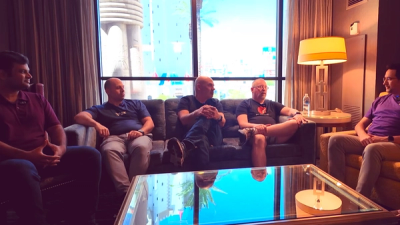
Socket CTO Ahmad Nassri joins AppSec leaders at Black Hat to discuss active malware, package manager risks, and software supply chain defense.