
Security News
Socket for Origin Now Available
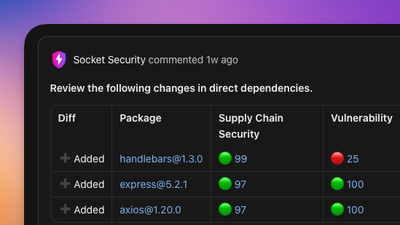
Socket for Origin scans dependency changes in pull requests and flags security risks based on your team’s policies. Now available in Cursor’s App Marketplace.
By Matt Stypa - Oct 14, 2026
Organize your files with AI - CLI tool with multiple LLM providers and auto-organize features

A powerful CLI application that helps you organize and manage your files using AI.

⚠️ This app uses cloud-based AI models 🤖, which may raise privacy concerns. Please be cautious when sharing personal information, or use a local LLM for increased privacy. 🔒
aifiles watch command for continuous file monitoringTo install AIFiles, simply run:
npm install -g aifiles
git clone https://github.com/jjuliano/aifiles.git
cd aifiles
npm install
npm run build
For development:
npm run build
# Then test with:
node dist/cli.mjs <file-path>
For full functionality, you may want to install these optional system tools:
MacOS (via Homebrew):
brew install pandoc exiftool poppler csvkit
Linux (Ubuntu/Debian):
sudo apt install pandoc exiftool poppler-utils python3-csvkit
Windows (via Chocolatey):
choco install pandoc exiftool poppler csvkit
Copy the configuration files to your home directory:
git clone https://github.com/jjuliano/aifiles.git
cd aifiles
mkdir -p ~/.aifiles
cp .aifiles.sample ~/.aifiles/config
cp fields.json.sample ~/.aifiles/fields.json
Edit ~/.aifiles/config to configure your AI provider:
# LLM Provider (openai, grok, deepseek, ollama, lmstudio)
LLM_PROVIDER=openai

# OpenAI API key (for OpenAI provider)
OPENAI_API_KEY=your_openai_key_here

# Grok API key (for Grok provider)
GROK_API_KEY=your_grok_key_here

# DeepSeek API key (for DeepSeek provider)
DEEPSEEK_API_KEY=your_deepseek_key_here

# LLM Model name
LLM_MODEL=gpt-3.5-turbo

# LLM Base URL (for Ollama or LM Studio)
LLM_BASE_URL=http://127.0.0.1:11434
AIFiles automatically uses vision capabilities for image files when available:
ollama pull llava)ollama pull llama3.2ollama pull llava~/.aifiles/config:
LLM_PROVIDER=ollama
LLM_MODEL=llama3.2
LLM_BASE_URL=http://127.0.0.1:11434
~/.aifiles/config:
LLM_PROVIDER=lmstudio
LLM_MODEL=local-model
LLM_BASE_URL=http://127.0.0.1:1234/v1
AIFiles provides multiple command-line tools:
aifiles - Organize FilesProcess a single file with various options:
# Basic usage
aifiles document.pdf

# Preview changes without applying them
aifiles document.pdf --dry-run

# Skip confirmation prompts
aifiles document.pdf --force

# Show detailed output
aifiles document.pdf --verbose

# Start file watching daemon
aifiles watch

# Browse and manage organized files
aifiles filemanager

# Get help
aifiles --help
aifiles-setup - Setup WizardRun the interactive setup wizard:
aifiles-setup
This will guide you through:
aifiles-templates - Manage TemplatesManage folder templates with various options:
# List all templates
aifiles-templates list

# Interactive menu for all template operations
aifiles-templates menu
# or
aifiles-templates --interactive

# Add a new template (interactive)
aifiles-templates add

# Edit an existing template
aifiles-templates edit <template-id>

# Remove a template
aifiles-templates remove <template-id>

# Enable watching for a template
aifiles-templates enable <template-id>

# Disable watching
aifiles-templates disable <template-id>

# Get help
aifiles-templates --help
aifiles watch - File Watching DaemonStart a persistent daemon that monitors enabled templates for new files:
aifiles watch
Features:
Example output:
👀 AIFiles Watch Daemon
Monitoring enabled templates for file changes...

📁 Watching Templates:
  • Downloads (~/Downloads)
  • Pictures (~/Pictures)

📄 New file detected: report.pdf
   Template: Documents
   🤖 Auto-organizing...
   ✓ Organized to: ~/Documents/Work/Quarterly Report--2025-11-05/report.pdf

✅ Watch daemon started successfully!
💡 Press Ctrl+C to stop watching
aifiles filemanager - File Management InterfaceBrowse, search, and manage all your organized files with a comprehensive TUI:
aifiles filemanager
Features:
Interactive Features:
Configuration:
Configure file manager behavior in ~/.aifiles/config:
# File Manager Indexing Mode
# 'launch' - Index all files at startup (thorough but slower startup)
# 'on-demand' - Index folders when expanded (default, faster startup)
FILE_MANAGER_INDEX_MODE=on-demand
AIFiles uses a field definition system in ~/.aifiles/fields.json. This file defines what information the AI should extract from your files and how to use it for file naming/organization.
Important: fields.json is NOT the actual LLM prompt. It contains field definitions that tell the AI what data to extract. These definitions get injected into the actual LLM prompt template (see ORGANIZATION_PROMPT_TEMPLATE below).
These field definitions are required for file organization:
{
  "internal_file_title": "A descriptive title for the file based on its content.",
  "internal_file_category": "The primary category that best describes the file content.",
  "internal_file_summary": "A brief summary or abstract of the contents of the file.",
  "internal_file_tags": "A list of keywords or tags associated with the file."
}
You can use over 100 field placeholders in your folder templates. These placeholders define what information the AI should extract:
General File Fields:
{file_title} - File title{file_category} - General category{file_category_1}, {file_category_2}, {file_category_3} - Multi-level categories{file_tags} - Keywords/tags{file_summary} - Brief summary{file_author} - Author name{file_date_created} - Creation dateMusic-Specific Fields:
{music_artist} - Artist name{music_album} - Album title{music_track_title} - Song title{music_track_number} - Track number{music_genre} - Music genre{music_year} - Release yearPicture-Specific Fields:
{picture_date_taken} - Photo date{picture_location_taken} - Location{picture_photographer_name} - PhotographerVideo-Specific Fields:
{video_title} - Video title{video_director} - Director name{video_duration} - Duration{video_resolution} - ResolutionDocument-Specific Fields:
{document_page_count} - Number of pages{document_related} - Related documentsSee full list in fields.json.sample
Edit ~/.aifiles/fields.json to customize what information the AI should extract for each field:
{
  "file_title": "Extract a SHORT, descriptive title (max 5 words)",
  "file_category_1": "Classify into: Work, Personal, Finance, or Education",
  "music_genre": "Identify the PRIMARY music genre only"
}
These field definitions get injected into the LLM prompt to tell the AI what data to extract.
Control how long to wait for AI analysis in ~/.aifiles/config:
# Organization Timeout (in seconds)
# Default: 180 (3 minutes)
# Increase for slow AI models or network connections
ORGANIZATION_TIMEOUT=300
You can customize the actual prompts sent to the LLM in ~/.aifiles/config:
The master prompt template for file organization. The {additionalPrompts} placeholder gets replaced with field definitions from fields.json:
# Custom template for main file organization (used by CLI)
# Available placeholders: {fileName}, {fileContent}, {exifMetadata}, {mimeType}, {mimeCategory}, {additionalPrompts}
# The {additionalPrompts} placeholder contains all field definitions from ~/.aifiles/fields.json
ORGANIZATION_PROMPT_TEMPLATE="Analyze the file '{fileName}' (type: {mimeType}) with content: {fileContent}. Extract all information according to these prompts: {additionalPrompts}. Return ONLY valid JSON."
How it works:
fields.json → combined into {additionalPrompts}For quick file analysis without full organization:
# Custom prompt for re-analyzing files in file manager (F6)
REANALYZE_PROMPT="Analyze this document and provide: 1. A SHORT title (max 5 words) 2. ONE primary category 3. Exactly 3 tags 4. One sentence summary. Return as JSON with keys: title, category, tags, summary"

# Custom prompt for watch mode file analysis
WATCH_MODE_PROMPT="Quick analysis: Extract title, category, 3 tags, and summary. Return as JSON with keys: title, category, tags, summary"
For image/photo file analysis using vision-capable models:
# Custom prompt for image caption generation
IMAGE_CAPTION_PROMPT="Describe this image in detail, focusing on the main subject, setting, and any important visual elements. Be concise but descriptive."
Vision Models Supported:
All organization prompts automatically include this instruction:
"Respond only with valid JSON containing exactly these fields: [field_list].

IMPORTANT:
- Start your response with { and end with }
- Do not write an introduction or summary
- Do not wrap the JSON in quotes or markdown code blocks
- Return ONLY the JSON object, nothing else"
Where [field_list] is dynamically generated based on the fields in your template (e.g., internal_file_title, internal_file_category, internal_file_summary, internal_file_tags, file_author, music_artist, etc.).
Example: If your template uses {file_title}, {file_category}, and {music_artist}, the instruction will be:
"Respond only with valid JSON containing exactly these fields: file_title, file_category, music_artist, internal_file_title, internal_file_category, internal_file_summary, internal_file_tags.

IMPORTANT:
- Start your response with { and end with }
- Do not write an introduction or summary
- Do not wrap the JSON in quotes or markdown code blocks
- Return ONLY the JSON object, nothing else"
This ensures the AI returns pure JSON with:
This prevents parsing errors and ensures consistent behavior across all AI providers.
LLM Prompt Types (in ~/.aifiles/config):
{additionalPrompts} = all field definitions from fields.jsonField Definitions (in ~/.aifiles/fields.json):
file_title, music_artist, picture_date_taken, etc.{additionalPrompts} placeholder in the organization templateHierarchy:
1. fields.json defines: "What fields to extract?"
   ↓
2. ORGANIZATION_PROMPT_TEMPLATE wraps: "How to ask the LLM?"
   ↓
3. Final LLM prompt sent to AI for analysis
Templates allow you to define custom folder structures and naming conventions for different types of files.
Use the interactive template manager:
aifiles-templates menu
Or create templates directly:
aifiles-templates add
When creating a template, configure:
~/Documents/Work){file_category_1}/{file_title}When file watching is enabled for a template:
aifiles ~/Downloads/document.pdf
The AI will analyze the document and suggest:
Work/Reports)AIFiles automatically creates these templates for standard XDG folders when you first run any command:
Name: Documents
Base Path: ~/Documents
Naming Structure: {file_category_1}/{file_title}--{file_date_created}
File Name Case: snake_case
Auto-organize: No
Watch for changes: No
Name: Downloads
Base Path: ~/Downloads
Naming Structure: {file_category_1}/{file_title}
File Name Case: kebab-case
Auto-organize: Yes
Watch for changes: Yes
Name: Pictures
Base Path: ~/Pictures
Naming Structure: {picture_date_taken}/{file_title}
File Name Case: lower_snake
Auto-organize: Yes
Watch for changes: Yes
Name: Music
Base Path: ~/Music
Naming Structure: {music_artist}/{music_album}/{file_title}
File Name Case: snake_case
Auto-organize: Yes
Watch for changes: No
Name: Videos
Base Path: ~/Videos
Naming Structure: {file_category_1}/{file_date_created}/{file_title}
File Name Case: kebab-case
Auto-organize: Yes
Watch for changes: No
Name: Desktop
Base Path: ~/Desktop
Naming Structure: {file_category_1}/{file_title}
File Name Case: camelCase
Auto-organize: Yes
Watch for changes: Yes
Use these placeholders in your folder templates:
{file_title} - AI-generated file title{file_category_1} - Top-level category{file_category_2} - Sub-category{file_category_3} - Third-level category{file_date_created} - File creation date{file_author} - Document author{music_artist} - Music artist name{music_album} - Album name{music_track_number} - Track number{picture_date_taken} - Photo dateSee full list of 100+ placeholders in fields.json.sample
See Customizing AI Field Extraction section above for details on how to customize these.
We welcome contributions! Please see our Contributing Guide for details on:
By participating, you agree to abide by our Code of Conduct.
This project is licensed under the MIT License.
FAQs
Organize your files with AI - CLI tool with multiple LLM providers and auto-organize features
We found that aifiles demonstrated a healthy version release cadence and project activity because the last version was released less than a year ago. It has 1 open source maintainer collaborating on the project.
Security News
Socket for Origin scans dependency changes in pull requests and flags security risks based on your team’s policies. Now available in Cursor’s App Marketplace.

Security News
Agent Baseline’s new reference architecture shows how to secure software factories with four boundaries enforced outside the AI agent.

Security News
arXiv now limits authors to two submissions a month as AI slop overwhelms moderators, delays good papers, and sparks debate over applying the limit to everyone.