Coding Agent Harness

English | 简体中文 | 日本語 | 한국어 | Français | Español | Deutsch
Coding agents can write code quickly. The annoying part starts later: one session made a plan, another changed files, and the next agent has to guess what is still risky.
Coding Agent Harness keeps that work in the repo: plans, progress, reviews, migration notes, and a dashboard that shows the current state.

What It Looks Like
The harness is just files plus a local dashboard.
AGENTS.md tells the next agent how this repo works.task_plan.md, progress.md, and review.md keep the task from turning into chat history.- Checks and migration reports say what is safe, what is stale, and what still needs a human decision.
harness dev opens the dashboard for everyday review.
The Loop
| Install | Give the agent one entrypoint. | npx skills add FairladyZ625/coding-agent-harness --skill coding-agent-harness |
| Start | The agent scans first, then proposes an init or migration plan. | npx --yes coding-agent-harness init ... or migrate-plan |
| Review | Open the dashboard and check the task state. | npx --yes coding-agent-harness dev . |
| Verify | Run checks before handoff. | npx --yes coding-agent-harness check --profile target-project . |
Try It In A Project
Use npx first. It does not add the CLI to your project dependencies.
npx --yes coding-agent-harness init --locale en-US --capabilities core,dashboard .
npx --yes coding-agent-harness dev .
npx --yes coding-agent-harness check --profile target-project .
For Chinese templates:
npx --yes coding-agent-harness init --locale zh-CN --capabilities core,dashboard .
If you want a static evidence snapshot instead of the live local workbench:
npx --yes coding-agent-harness dashboard --out-dir tmp/harness-dashboard .
open tmp/harness-dashboard/index.html
What The Agent Reads
Harness is ordinary repository content. There is no database to run.
AGENTS.md
docs/
  03-ARCHITECTURE/
  04-DEVELOPMENT/
  05-TEST-QA/
  09-PLANNING/TASKS/
  10-WALKTHROUGH/
  11-REFERENCE/
Typical task files:
task_plan.md
execution_strategy.md
visual_map.md
progress.md
review.md
lesson_candidates.md
Humans scan the dashboard. Agents read the files. That is the whole trick.
Language Support
| English | Full | Full | Full |
| Simplified Chinese | Full | Full | Full |
| Japanese | Intro | Routing only | Use English templates |
| Korean | Intro | Routing only | Use English templates |
| French | Intro | Routing only | Use English templates |
| Spanish | Intro | Routing only | Use English templates |
| German | Intro | Routing only | Use English templates |
Intro-only pages are deliberately small. Agent-executable templates stay in English and Simplified Chinese first, because stale translated instructions are worse than no translation.
Good Fit
This is useful when:
- agents work on real repositories for days or weeks;
- multiple agents or developers share the same project;
- task state, review evidence, and regression results need to survive across sessions;
- an existing project has old plans, migration notes, or scattered agent instructions;
- the important parts of AI work should not live only in chat logs.
Install The Skill
If your agent supports Skills:
npx skills add FairladyZ625/coding-agent-harness --list
npx skills add FairladyZ625/coding-agent-harness --skill coding-agent-harness
Install into the global Codex skill directory:
npx skills add FairladyZ625/coding-agent-harness \
  --skill coding-agent-harness \
  --agent codex \
  --global \
  -y
Agents should not silently run a global npm install. If a long-lived harness command is desired, ask the human first:
npm install -g coding-agent-harness
harness --help
Agent Prompt
Send this to an agent inside your target project:
Install and read Coding Agent Harness first:

npx skills add FairladyZ625/coding-agent-harness --skill coding-agent-harness

First diagnose the project structure, then give me an initialization or migration plan.
Do not overwrite existing business docs, historical tasks, regression records, or user changes.

Use npx unless I explicitly approve a global npm install:
npx --yes coding-agent-harness <command>

After confirmation, execute Diagnose -> Decide -> Scaffold -> Configure -> Verify -> Deliver.
When finished, report created files, check results, Dashboard URL or HTML path, and recommended next steps.
Learn More
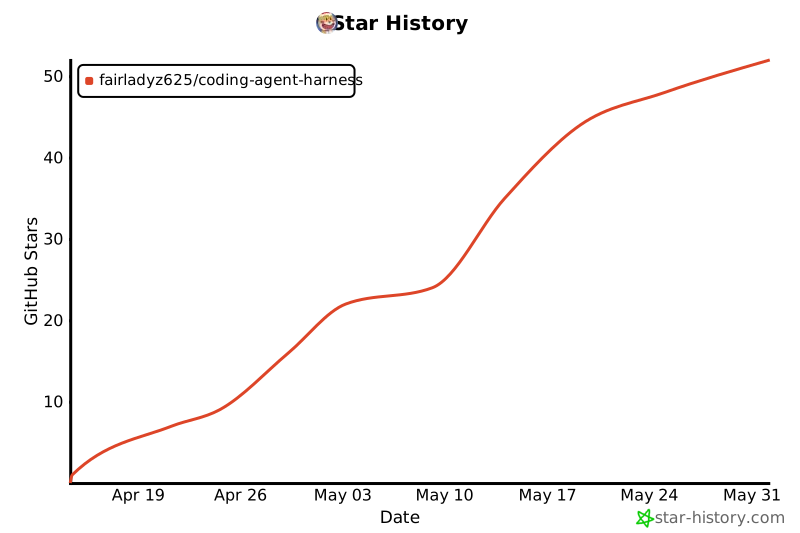
Star History
License
MIT