Dimcode CLI
A powerful AI agent CLI with a beautiful interactive terminal UI (TUI)

Dimcode is a command-line interface for AI-powered coding assistance. It helps you move fast with:
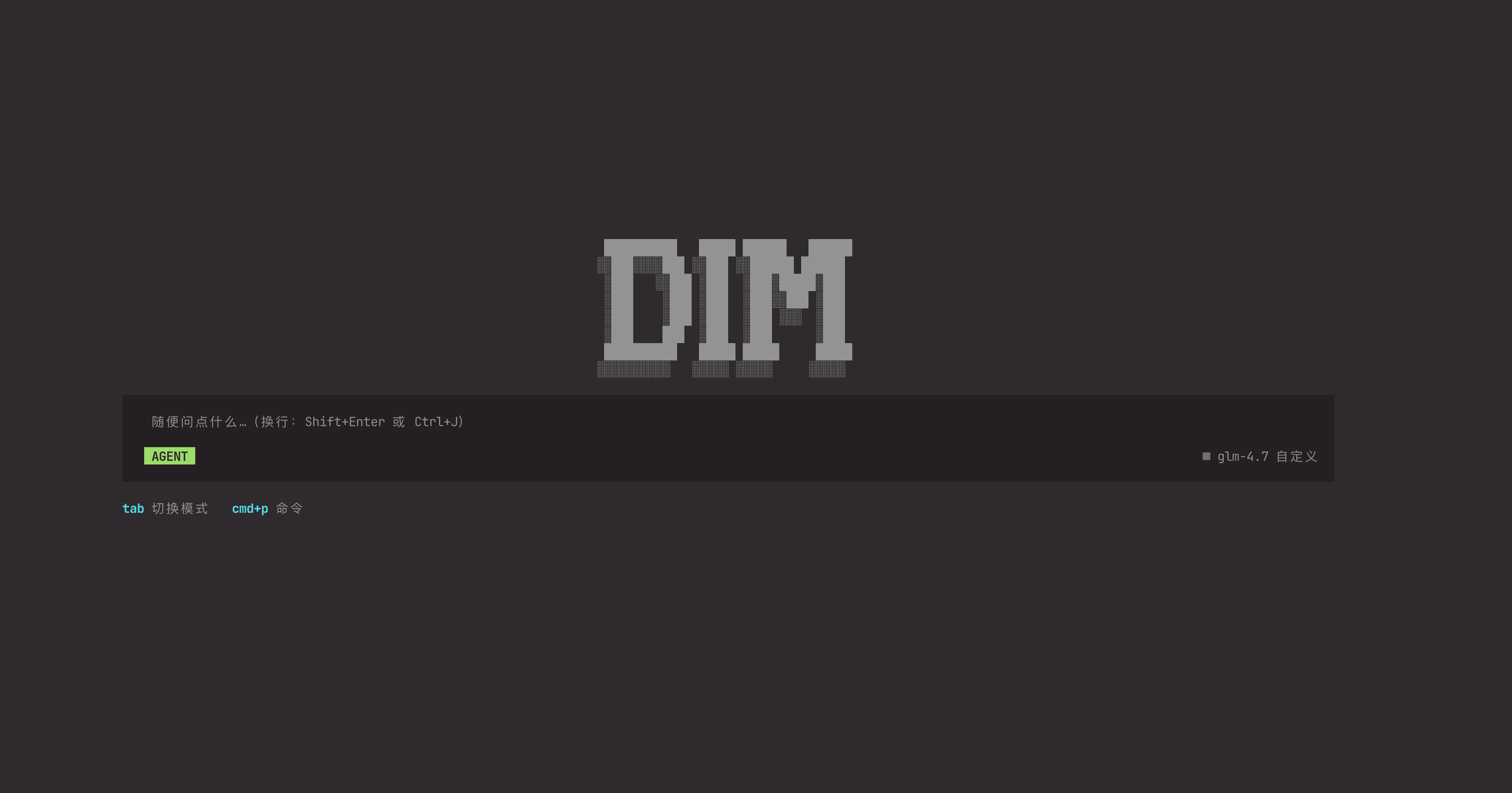
- 🎨 Beautiful TUI - Modern terminal interface built with Vue 3
- 💬 Multi-session Management - Organize multiple AI conversations
- 🔧 Built-in Tools - File ops, web search, code analysis, and more
- ⚡ Streaming Responses - See AI outputs in real time
- 🎯 Tool Approvals - Granular control over tool execution
- 🌈 Themes - Flexible, customizable color schemes
📈 Download Stats
| Weekly downloads |  |
| Total downloads |  |
⚡ Get Started in 30 Seconds
npm install -g dimcode
dim
Create a React component for a todo list
📦 Installation
Global Installation (Recommended)
npm install -g dimcode
Or using other package managers:
pnpm add -g dimcode
yarn global add dimcode
bun add -g dimcode
Using npx (No Installation)
Run directly without installation:
npx dimcode
🎮 Usage
Command Palette
Press Ctrl+P to open the command palette, which provides quick access to:
- Sessions - View and switch between conversations
- New Session - Start a fresh conversation
- Settings - Configure API keys and model settings
- Tool Approvals - Manage tool execution permissions
- Theme - Customize the UI appearance (in Chat view)
Slash Commands
Type slash commands directly in the input field:
/settings | Open settings dialog (custom providers) |
/config | Alternative for /settings |
/approvals | Manage tool approvals (auto/all) |
/approval | Alternative for /approvals |
/connect | Connect a provider |
/models | Select a model |
/sessions | List all sessions |
/new | Create a new session |
/redo | Redo last interaction |
/rename <title> | Rename current session |
/timeline | Jump to a user message |
/tl | Alternative for /timeline |
/review | Review code changes |
/debug | Open debug dialog (node mode only) |
Keyboard Shortcuts
Ctrl+P | Open command palette |
Ctrl+O | Expand/collapse all tool calls & thinking |
Ctrl+C | Clear input (if non-empty); otherwise exit |
Enter | Send message |
Shift+Enter | New line in input |
Input Tips
- Drag to select text, then release to auto-copy (when enabled)
- In the input area, use
Shift+Option for rectangular selection
- Triple-click in the input area to select all
Tab moves focus to the next input field; Shift+Tab moves to the previous- The CLI is mouse-friendly for selection, scrolling, and clicking buttons/controls
⚙️ Configuration
Environment Variables
Create a .env file in your working directory or set environment variables:
OPENAI_API_KEY=your_api_key_here
OPENAI_BASE_URL=https://api.openai.com/v1
DIMCODE_MODEL=deepseek-v3.1
SERPER_API_KEY=your_serper_key_here
First-time Setup
On first launch, Dimcode will guide you through:
- API Key Setup - Enter your OpenAI API key
- Model Selection - Choose your preferred AI model
- Tool Approvals - Configure which tools can run automatically
Settings are stored in ~/.dimcode/dimcode/ directory by default (can be customized via DIMCODE_HOME environment variable).
🔧 Built-in Tools
Dimcode comes with powerful built-in tools:
File Operations
- Read - Read file contents
- Write - Create or overwrite files
- Edit - Make precise edits to existing files
Code Analysis
- Grep - Search content using patterns
- Glob - Find files by pattern
- AstGrepSearch - AST-based code search
- AstGrepReplace - AST-based code refactoring
Web & Research
- WebSearch - Search the web using Serper API
- WebFetch - Fetch web page content
Task Management
- TodoWrite - Create and manage TODO lists
- Task - Execute complex multi-step tasks
- Skill - Store and reuse common workflows
System
- Bash - Execute shell commands (requires approval)
- AskUser - Request input from user
📚 Examples
Basic Coding Assistant
dim
Multi-file Refactoring
dim
Web Research
dim
🔐 Security & Privacy
- Tool Approvals: By default, sensitive operations (file writes, shell commands) require user approval
- Local Storage: All session data is stored locally in
~/.dimcode/dimcode/ (customizable via DIMCODE_HOME)