

Security News
Happy Birthday, Shai-Hulud
It has been one year since Shai-Hulud made its first appearance on npm.
By Sarah Gooding - Sep 18, 2026


Add a secure administrator login to the DeepSeek Harness Web app. dsh-auth keeps Harness on loopback and installs a project-owned Caddy forward_auth edge for pages, APIs, downloads, SSE, and WebSockets.
Version 2 is a breaking upgrade. Previous installer flags, Nginx-managed installations, and old sessions are not migrated. Uninstall the previous installation, then run setup again.
Install the published CLI and the matching Caddy platform package, then start from an existing DSH Web systemd service whose upstream listens only on loopback:
sudo npm install -g dsh-auth
sudo npm install -g dsh-auth-caddy-linux-x64@2.11.4-dsh.1   # or dsh-auth-caddy-linux-arm64@2.11.4-dsh.1
sudo dsh-auth setup
npm install -g dsh-auth installs the current stable CLI, and the installer pins that same version in the selected DSH profile. For controlled production rollout, install the exact version approved by your supply-chain policy:
sudo npm install -g dsh-auth@0.1.14
The interactive installer asks for the exact DSH service, administrator initialization method, HTTPS hostname, and TLS mode; shows a secret-free plan; and changes the system only after you type the exact confirmation. It installs the pinned bundle into the selected DSH profile, copies a checksum-verified Caddy binary, writes permission-restricted authentication state, and enables an independent dsh-auth-caddy.service. It never stores a plaintext password and never downloads Caddy at setup time.
Normal deployment requires Linux x64 or ARM64, systemd, Node.js 24.7 or newer, DSH Web 0.1.0-rc.7, and the matching dsh-auth-caddy-*@2.11.4-dsh.1 optional package. Automatic TLS is the HTTPS default. Manual TLS requires an existing certificate and key.
$ sudo dsh-auth setup
Existing DSH Web systemd unit: dsh-web.service
Administrator initialization (password/login-token): password
Login tokens (enabled/disabled) [disabled]: enabled
Administrator username: operator
Edge mode (https/http) [https]:
TLS (automatic/manual) [automatic]:
Public HTTPS hostname: harness.example.com
...
Type install to apply this exact plan: install
Password:
Confirm password:
dsh-auth setup completed successfully.
Rerunning the same command is idempotent. An existing managed installation with identical non-secret settings is reported unchanged; different settings or files without an ownership record are rejected instead of overwritten.
Use plan before setup to inspect the same typed plan without reading a password or changing the filesystem:
sudo dsh-auth plan
Non-interactive mode requires stable flags and an explicit administrator initialization method. For password initialization, mount the plaintext password as a temporary 0600 secret file supplied by the platform; dsh-auth reads it once to create an Argon2id hash and does not copy the plaintext.
These command names, flag names, --name value or --name=value syntax, JSON schema version 2, and exit codes are the public automation contract. Global flags may precede the command. New flags and diagnostic codes may be added. Renaming, removing, or changing the meaning of an existing flag, JSON field, or exit code is a breaking change.
Print the frozen usage text:
dsh-auth --help
dsh-auth --version
-h is an alias for --help. dsh-auth setup --help prints the same usage text. The example below is a complete HTTPS system install with password initialization and automatic TLS.
Prompts run only when stdin and stdout are both TTYs and --non-interactive is not set. --json is output format only and does not disable prompts.
sudo dsh-auth setup \
  --non-interactive \
  --json \
  --dsh-service dsh-web.service \
  --dsh-home /var/lib/dsh \
  --dsh-executable /usr/local/bin/dsh \
  --profile web \
  --admin-bootstrap password \
  --admin-username operator \
  --login-token enabled \
  --password-file /run/secrets/dsh-auth-password \
  --mode https \
  --tls automatic \
  --upstream 127.0.0.1:3080 \
  --listen-address 0.0.0.0 \
  --server-name harness.example.com
Token initialization omits the password and username. The first authorized user sets them in the browser, or chooses Later:
sudo dsh-auth setup \
  --non-interactive \
  --json \
  --dsh-service dsh-web.service \
  --admin-bootstrap login-token \
  --login-token enabled \
  --mode https \
  --tls automatic \
  --server-name harness.example.com
| Flag | Required | Default | Description |
|---|---|---|---|
--help, -h | no | Print usage and exit. | |
--version | no | Print the CLI version and exit. | |
--non-interactive | on a TTY | Disable prompts. | |
--json | no | Emit one JSON document. Does not disable prompts. | |
--mode | no | https | https or http. |
--admin-bootstrap | when not prompting | password or login-token. | |
--admin-username | password setup | Initial administrator login name. | |
--login-token | when not prompting | enabled or disabled. Token initialization requires enabled. | |
--listen-address | HTTP | 0.0.0.0 for HTTPS | Literal IP bind address. HTTP still requires an explicit private or loopback address. |
--dsh-service | system setup | Exact existing DSH Web systemd unit. Omit only with --output-dir. | |
--password-file or --password-stdin | ready password setup | Password source. Not used by plan or token initialization. Unchanged reruns skip it. | |
--server-name | --mode https | Public HTTPS hostname. | |
--tls | HTTPS | automatic | automatic or manual. |
--certificate | --tls manual | Absolute TLS certificate path. | |
--certificate-key | --tls manual | Absolute TLS private-key path. | |
--dry-run | no | On setup, alias for plan. On uninstall, list owned removals without changing the host. | |
--dsh-home | no | discovered | Harness home when the unit does not infer it. |
--dsh-executable | no | discovered | DSH executable file when the unit does not infer it. Not a directory. |
--profile | no | web | DSH profile name. |
--upstream | no | 127.0.0.1:3080 | Loopback DSH listener (127.0.0.1 or [::1]). |
--package | no | dsh-auth@<CLI version> | Pinned registry spec or absolute .tgz. |
--http-port | no | 80 (8080 for HTTP) | HTTP or HTTPS-redirect port. |
--https-port | no | 443 | HTTPS listen port. |
--output-dir | no | Offline or container render directory. Skips systemd. |
Removed without aliases: --nginx, --authorize-nginx-install, --user-id, --username, --roles, and --dsh-bin.
Other commands accept a smaller frozen flag set:
| Command | Required when not prompting | Optional |
|---|---|---|
plan | Same setup flags, without a password source | --json, --non-interactive |
doctor | --json | |
reset-password | --password-file or --password-stdin; --authorize-password-reset | --json, --non-interactive |
uninstall | --authorize-uninstall | --json, --non-interactive, --dry-run |
issue-login-token | --authorize-login-token-issue when not prompting | --ttl-seconds, --auth-state-file with --public-origin, --json |
hash | --password-stdin | |
secret |
Passwords are accepted only through hidden interactive input, --password-stdin, or --password-file. There is no inline password flag. Command output, JSON, plans, subprocess argv, and installer errors never contain password or session-secret values. issue-login-token is the only command whose successful stdout or JSON may contain a bearer login token.
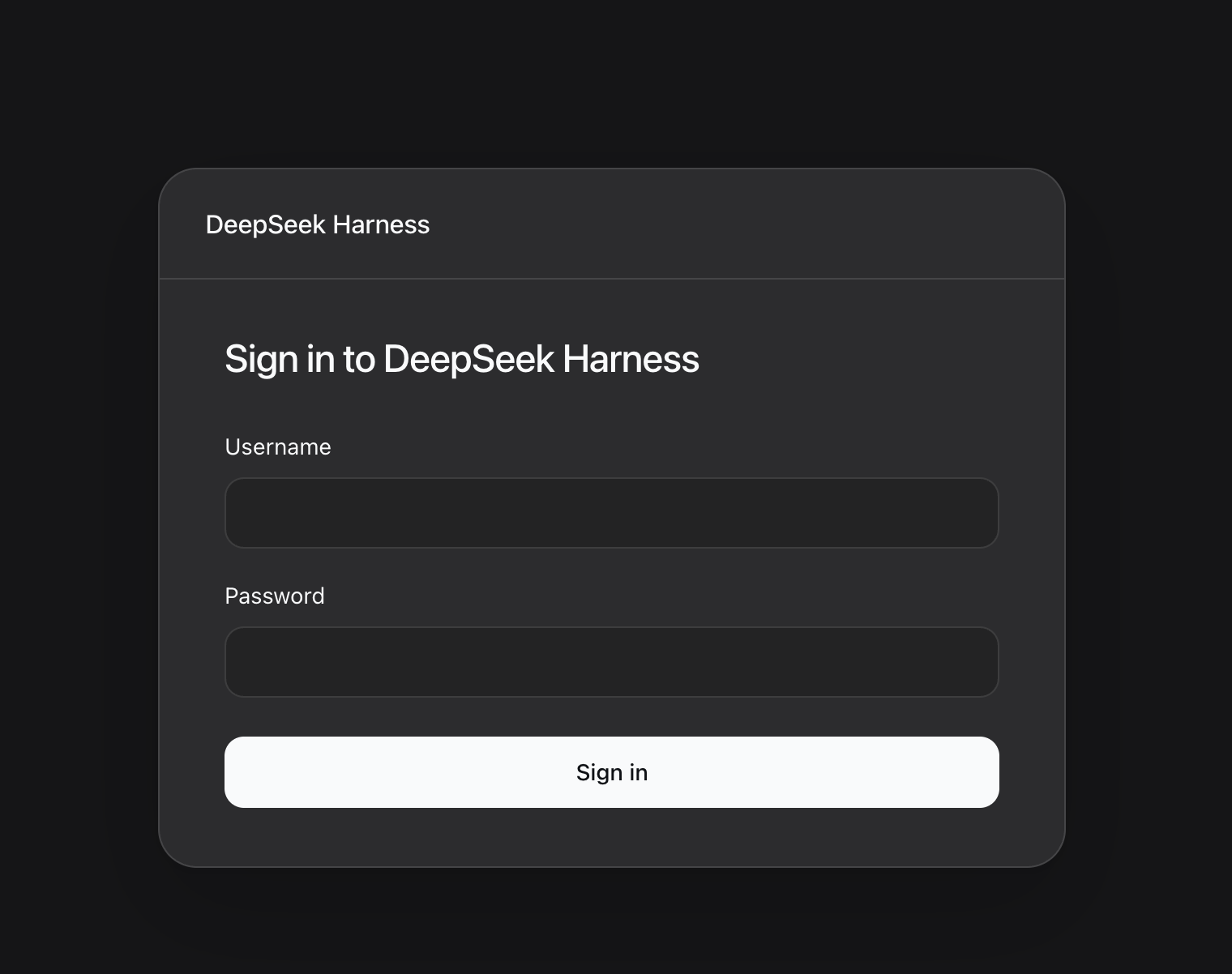
Unauthenticated visitors see a responsive login page styled to match DeepSeek Harness:
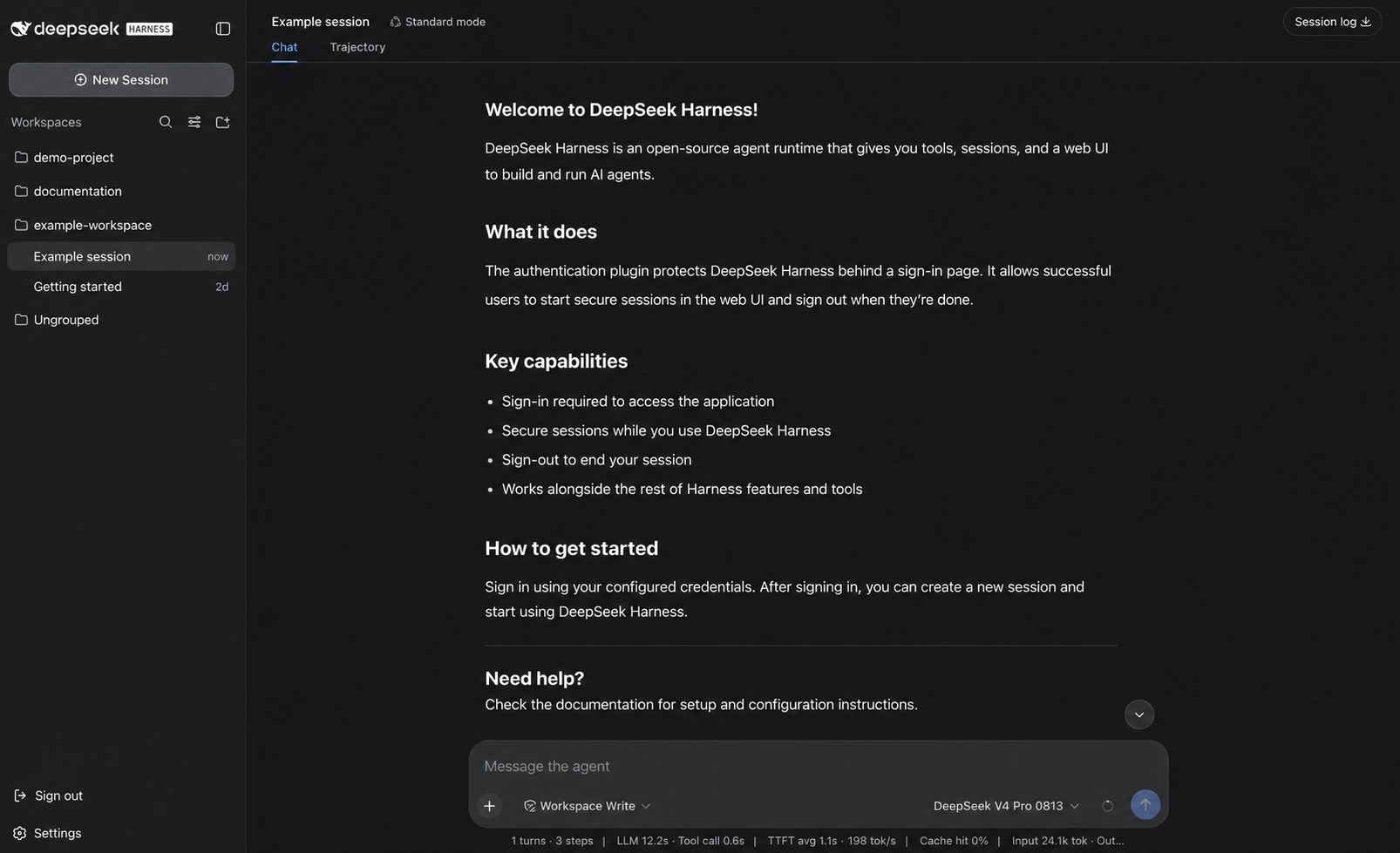
After sign-in, users enter the real Harness Web app with its normal sessions, tools, model selection, and workspace navigation. The authentication plugin adds a native sign-out action to the sidebar:
When setup enabled login tokens, a cloud control plane or operator can mint a single-use URL. The raw token appears only in the successful human URL line or the JSON success document:
sudo dsh-auth issue-login-token --non-interactive --authorize-login-token-issue
The URL uses a fragment (/auth/token#token=…). Opening it establishes the same 72-hour rolling session as a password login. If the administrator password has not been set, the browser first offers a setup page; Later skips only that login.
Container and image layouts pass explicit paths instead of reading the systemd ownership record:
dsh-auth issue-login-token \
  --non-interactive \
  --authorize-login-token-issue \
  --json \
  --auth-state-file /export/dsh-auth/state/auth-state.json \
  --public-origin https://harness.example.com
For an installation created by setup, run the interactive reset:
sudo dsh-auth reset-password
After exact confirmation, the command reads and confirms the new password without echo. It atomically replaces the managed Argon2id hash, rotates the session secret, revokes all existing sessions, and restarts the recorded DSH service only when it is active. A failed restart restores both previous credential files.
Automation must provide the password through stdin or a temporary 0600 file and explicitly authorize the operation:
sudo dsh-auth reset-password \
  --non-interactive \
  --json \
  --authorize-password-reset \
  --password-file /run/secrets/dsh-auth-new-password
The command never accepts a password value in argv and does not print the password, hash, or session secret.
Plain HTTP remains authenticated but exposes credentials and sessions to network interception. It is accepted only with an explicit --mode http and a literal loopback, RFC1918, or ULA listen address:
sudo dsh-auth setup \
  --admin-bootstrap password \
  --admin-username operator \
  --login-token disabled \
  --mode http \
  --listen-address 10.0.0.20 \
  --http-port 8080
Do not use this mode on an untrusted network. HTTPS is the production default.
doctor checks the ownership record, file permissions, the exact DSH service, root-executable safety, Caddy version and checksum, caddy validate, and service state:
sudo dsh-auth doctor
sudo dsh-auth doctor --json
uninstall --dry-run lists only files and profile changes proven by the ownership record. Interactive uninstall requires typing uninstall; automation requires the exact --authorize-uninstall flag. The independent Caddy unit is removed; a user-installed Caddy or Nginx is never touched.
sudo dsh-auth uninstall --dry-run
sudo dsh-auth uninstall
schema v1 ownership records, old Nginx flags, and old plugin identity fields are refused with a reinstall diagnosis. There is no automatic migration. Old sessions become invalid after uninstall and a new setup.
| Code | Meaning |
|---|---|
0 | success, healthy, or unchanged |
2 | invalid or incomplete CLI input |
3 | missing or unsupported prerequisite |
4 | ownership or existing-configuration conflict |
5 | insufficient or unsafe permissions |
6 | execution or rollback failure |
7 | interactive cancellation before changes |
8 | doctor found an unhealthy installation |
JSON output uses schema version 2 and includes the command, status, exit code, redacted actions, and structured diagnostics.
Build and pin the exact npm tarball, then install it into the DSH profile without registry access:
Replace X.Y.Z with the version in the packed artifact's filename.
corepack pnpm pack --pack-destination packed
dsh plugin --profile web add --offline --config.auto-install-peers=false /artifacts/dsh-auth-X.Y.Z.tgz
Generate deterministic runtime files without invoking systemd, a package manager, or a host Caddy binary:
dsh-auth setup \
  --non-interactive \
  --output-dir /image/dsh-auth \
  --package /artifacts/dsh-auth-X.Y.Z.tgz \
  --admin-bootstrap password \
  --admin-username operator \
  --login-token enabled \
  --password-file /run/secrets/dsh-auth-password \
  --server-name harness.example.com \
  --tls manual \
  --certificate /run/tls/fullchain.pem \
  --certificate-key /run/tls/privkey.pem
The output directory contains dsh-auth.env, file-backed credentials, authentication state, a login-token directory, and a Caddyfile. Copy or mount them into fixed image paths and explicitly wire the environment file and Caddy config. Place the matching platform Caddy package in the image; setup never downloads the binary. deploy/docker/Dockerfile.install shows the offline profile layer.
HttpOnly, Secure, SameSite=Lax, Path=/, and __Host- prefixed. Plain HTTP uses an explicit compatibility cookie mode.0600 authentication-state document.no-store.admin) per managed installation. Password and token initialization are an explicit choice. Registration, self-service account recovery, MFA, databases, multi-account policy, and multi-tenancy are outside this release.Security reports follow SECURITY.md.
corepack pnpm install --frozen-lockfile
corepack pnpm run check
corepack pnpm run check:caddy
corepack pnpm run test:e2e
corepack pnpm pack --pack-destination packed
node scripts/installer-e2e.mjs packed/dsh-auth-X.Y.Z.tgz
Replace X.Y.Z with the version in package.json.
test:e2e packs the current checkout, installs it into a disposable DSH profile, and drives a real TLS Caddy edge plus a headless browser. It verifies unauthenticated denial, login-token issue and redemption, first-time administrator setup, password login, the protected SPA/API/download/WebSocket paths, session renewal and restart persistence, and sidebar sign-out revocation. It requires OpenSSL, ss, and Chrome or Chromium; set DSH_E2E_CHROME_BIN when the browser is not installed at a standard Linux path. Without DSH_E2E_CADDY_BIN, the test prepares a checksum-verified official Caddy v2.11.4 binary for isolation only.
Contributors should read AGENTS.md. Installer architecture and maintenance checks are in docs/installer.md.
Stable npm and GitHub releases are dispatched from the Release workflow; maintainers should update the changelog and follow docs/releasing.md first.
FAQs
Caddy-fronted administrator authentication bundle for DeepSeek Harness
The npm package dsh-auth receives a total of 85 weekly downloads. As such, dsh-auth popularity was classified as not popular.
We found that dsh-auth demonstrated a healthy version release cadence and project activity because the last version was released less than a year ago. It has 1 open source maintainer collaborating on the project.
Security News
It has been one year since Shai-Hulud made its first appearance on npm.

Research
/Security News
Operators behind PolinRider used a compromised GitHub account to plant malware in four development versions of a Packagist package with 700,000+ downloads.

Security News
GitHub Actions now supports cache-mode, a least-privilege control on the Actions cache aimed at the cache poisoning technique behind recent compromises.