
Product
Socket Now Protects the Microsoft Edge Extension Ecosystem
Enterprise security teams can now detect malware, credential theft, suspicious network activity, and risky updates across Microsoft Edge extensions.
By John Tuckner - Aug 28, 2026
dsh-modellix
Advanced tools
A Modellix Profile Bundle for DeepSeek Harness: one Modellix API Key provides schema-driven Design media generation, a live LLM model catalog, and native Web providers.
Harness and this plugin currently use prerelease interfaces. Before upgrading Harness, check this package's peer dependencies and CHANGELOG.

| Feature | User experience | Actual behavior |
|---|---|---|
| Design | Select a model, enter a prompt, and adjust parameters on the left; review tasks and results on the right | Reads the live image, video, and audio catalog and each model's public Schema; submits a billed generation only once |
| LLM | Quickly switch Modellix models in the Harness model selector | Merges the live catalog into the Harness llm-pi-ai Modellix provider |
| Web | Use the native Harness web_search and web_fetch tools | Registers Modellix Search/Fetch providers without creating duplicate custom tools |
The first-run dialog contains an API Key field and Design, LLM, and Web switches. All three switches are on by default and can later be disabled independently in Modellix settings.
0.1.1-rc.2^22.19.0 || >=24.0.024.18.1 and pnpm 11.24.0 (see .nvmrc and packageManager)dsh-modellix contains its own Harness integration. It neither installs nor invokes modellix-cli at runtime.
For a Windows-first walkthrough from this source checkout, see Using dsh-modellix locally or its Chinese edition.
Install the published package into the target Web profile, inspect the merged configuration, then start or restart that profile:
dsh plugin --profile web add dsh-modellix
dsh --profile web --dump-config
dsh --profile web
--dump-config should show the dsh-modellix Bundle layer and a plugin row whose id is modellix. Replace web if you use a different profile.
You can also build a tarball from trusted source and install the artifact:
pnpm install --frozen-lockfile
pnpm run verify:release:static
pnpm pack
dsh plugin --profile web add ./dsh-modellix-0.1.1.tgz
Installing TypeScript source directly from Git requires the installation phase to produce lib/. Until the package provides a verified prepare flow, use the published package or a local tarball.
The API Key can come from either source:
MODELLIX_API_KEY in the Harness launch environment. An environment-sourced Key is read-only in the UI; restart Harness after updating it.Never put a real Key in a repository, command argument, log, screenshot, HAR, recording, or test snapshot.
See the user guide: first-time setup and Credentials for the complete flow.
api_schema, including public defaults.openai/gpt-5.6-luna model and may incur LLM usage. It produces a reviewable diff and never starts media generation by itself.For example, select an available image model whose live Schema exposes quality and size, then enter this acceptance prompt:
A premium editorial architectural photograph of a quiet cliffside library above a misty alpine lake at blue hour, carved pale stone arches, warm amber reading lamps, one thoughtful reader, subtle greenery, natural reflections, cinematic but realistic lighting, restrained navy and ivory palette, precise composition, no text, no logo.
This is the exact prompt used for the documented real-API image, not a placeholder. The screenshot below was captured after the task completed in the real Design results list.
Set quality to high and size to 1536x1024, leaving other fields at the model's current defaults. You can edit those controls directly or ask the parameter assistant to propose the two changes, then review and apply the diff. The proposal may incur LLM usage but does not generate an image. Only the final “Confirm and generate” action starts the billed media request, and the plugin does not retry it automatically. If the selected model does not advertise either field, do not add it manually—choose values and fields from that model's live Schema.
Results remain accessible only while the upstream resource is valid. If the upstream response has no expiry, the plugin uses a seven-day local display limit. This does not extend the upstream URL or copy media into permanent local storage.
LLM uses the OpenAI Completions-compatible endpoint https://llm.modellix.ai/v1. The plugin sets provider retries to 0 to avoid repeating model calls at the plugin layer; it never fabricates a static model list when the catalog is unavailable.
When Web is enabled and a Key is available, ask Harness to search the public Web and, when needed, fetch a selected result. The native web_search and web_fetch tools run through the Modellix provider; the plugin does not add a duplicate Tool UI. The provider is unavailable when Web is disabled or no valid Key exists. Web requests may incur Modellix usage and are not automatically retried by the provider. If a paid Fetch outcome is unknown, inspect the Harness transcript or Modellix-side record before repeating it manually.
The Modellix settings page provides:
Only an explicit HTTP 401 marks the current Credential invalid and opens recovery. A 402, 429, network failure, or 5xx is not reported as an invalid Key. If an environment-sourced Key is invalid, update MODELLIX_API_KEY in the launch environment and restart Harness; the UI cannot override it.
Recovery is coordinated across plugin dialogs: concurrent 401 responses produce one Credential dialog. An already-open local Key editor upgrades in place; if an ordinary removal confirmation or image viewer is open, recovery waits until it closes instead of stacking another modal. Save a replacement Key and retry the intended capability. For an environment-sourced Key, update it outside the UI and restart Harness.
If a disconnected billed submission has an unknown outcome, Design shows “Submission outcome unknown.” Check Results or the Modellix-side record before any manual resubmission to avoid duplicate charges.
Tab / Shift+Tab wrapping, background inertness, and focus restoration after closing.992px; narrower host slots stack into one column, with a viewport fallback at 768px. The implementation targets 320px, 200% text zoom, light/dark themes, forced colors, 48px coarse-pointer targets, and reduced motion.README.md is the default English entry, with a complete Chinese edition alongside it.If the Key is stored in a local writable Credential, remove it from Modellix settings first. Revoke an environment-sourced Key in the external launch environment or secret manager. Then remove the plugin from the target profile and restart it:
dsh plugin --profile web remove dsh-modellix
dsh --profile web --dump-config
dsh --profile web
Uninstalling the plugin does not promise to remove external environment variables, upstream tasks, or every piece of persisted Harness data. Handle each system separately if your policy requires cleanup.
The repository includes six English full-screen screenshots captured from a real configured Harness session. The Chinese guide uses a separate six-image Chinese set of the same workflows. The captures use the live Modellix catalog, a real Schema-constrained parameter proposal, one completed gpt-image-2 result, a real Modellix LLM turn, and real native Web Search/Fetch. None contains an API Key, Network request details, HAR, or Credential file:
| Suggested file | Alt text |
|---|---|
docs/assets/settings-ready-en.webp | English Modellix settings with a verified local Credential, all three feature switches, and 26 live LLM models |
docs/assets/design-desktop-en.webp | English Modellix Design two-pane desktop workspace using the live gpt-image-2 Schema |
docs/assets/design-proposal-en.webp | English real parameter proposal with Schema-valid before/after values and explicit Reject/Apply actions |
docs/assets/design-results-media-en.webp | English result pane with the real 1536×1024 image, expiry, enlargement, and download actions |
docs/assets/llm-model-selector-en.webp | English Harness model selector populated from the live Modellix LLM catalog |
docs/assets/web-tools-en.webp | English Harness chrome showing real Modellix Search and Fetch results for public official documentation |
The Credential is shown only as a write-only configured status. Never open the Key editor, Network, HAR, Console, Credential files, Cookies, or request details while capturing a real session.
pnpm install --frozen-lockfile
pnpm run verify:env
pnpm run typecheck
pnpm run lint
pnpm run test
pnpm run build
pnpm run verify:pack
pnpm run verify:fresh-install
pnpm run verify:node22-install
pnpm run verify:release:static
pnpm run check runs environment verification, type checking, lint, the complete unit/contract suite, global hard coverage thresholds, and file-specific regression floors for the Host runtime and Design parameter planner. verify:pack checks the exact artifact allowlist, bilingual documentation, twelve locale-specific metadata-free WebP screenshots by actually decoding them, entries, embedded Source Map source, and sensitive-file exclusions. verify:fresh-install installs the final tarball in a temporary project, loads Host, executes the Client factory, checks subpath exports, and compiles consumer type smokes. verify:node22-install repeats the tarball runtime smoke with an explicitly configured or NVM-discovered Node.js ^22.19.0 binary and fails instead of silently skipping when none exists. pnpm run verify:release:static chains these static gates with the production dependency audit.
Use pnpm run verify:release for an actual release. First commit the final code, documentation, and screenshots and keep the worktree clean. Create two Secret-free JSON files outside the repository. Each must be smaller than 32 KiB, target the current package version and lowercase 40-character HEAD, and use a canonical UTC ISO-8601 completedAt no more than 72 hours old. Browser evidence must contain every fixed check below:
{
  "version": 1,
  "kind": "browser",
  "status": "passed",
  "package": { "name": "dsh-modellix", "version": "0.1.1" },
  "commit": "<current-40-character-lowercase-git-head>",
  "completedAt": "<canonical-utc-iso-8601>",
  "checks": {
    "onboarding": "passed",
    "settings": "passed",
    "design": "passed",
    "llm": "passed",
    "web": "passed",
    "401": "passed",
    "a11y": "passed",
    "theme": "passed",
    "viewports": "passed"
  }
}
Real API/Agent evidence must cover catalogs, parameter planning, all three media types, the LLM Agent, and Web. billedCallsExplicitlyAuthorized attests only that the operator explicitly authorized this run's billed calls; never put a Key, request header, or any other Secret in evidence:
{
  "version": 1,
  "kind": "api-agent",
  "status": "passed",
  "package": { "name": "dsh-modellix", "version": "0.1.1" },
  "commit": "<current-40-character-lowercase-git-head>",
  "completedAt": "<canonical-utc-iso-8601>",
  "checks": {
    "catalogs": "passed",
    "planner": "passed",
    "image": "passed",
    "video": "passed",
    "audio": "passed",
    "llm-agent": "passed",
    "web": "passed"
  },
  "billedCallsExplicitlyAuthorized": true
}
To produce this evidence from live services, first complete and verify one Modellix-backed DSH Agent turn in an isolated Web profile. Then let the acceptance process supply MODELLIX_API_KEY directly from a controlled environment, file, or Credential and run pnpm run test:real:modellix with these non-secret controls:
$env:MODELLIX_ALLOW_BILLED_E2E = '1'
$env:MODELLIX_REAL_AGENT_ATTESTED = '1'
$env:MODELLIX_REAL_E2E_OUTPUT_DIR = 'D:\outside-repo\modellix-real-results'
$env:MODELLIX_API_AGENT_E2E_EVIDENCE_FILE = 'D:\outside-repo\api-agent-evidence.json'
pnpm run test:real:modellix
The runner performs live authenticated catalogs and Schema planning, submits exactly one billed image, video, and audio POST, polls those tasks with bounded reads, executes real Web Search/Fetch, saves all media outside the repository for independent decoding checks, and writes Secret-free evidence. It refuses to run without both explicit billing authorization and the prior Agent attestation. It never supplies or accepts a Key as a command argument.
Supply both absolute paths and run the gate. Paths may be environment variables; the API Key must not be:
MODELLIX_BROWSER_EVIDENCE_FILE=/absolute/path/browser-evidence.json \
MODELLIX_API_AGENT_E2E_EVIDENCE_FILE=/absolute/path/api-agent-evidence.json \
pnpm run verify:release
Evidence is a strictly shaped acceptance attestation; it does not execute or retry billed calls. The gate fails for a missing, failed, or unknown check, unknown field, in-repository or stale file, package/commit mismatch, or dirty worktree.
See LICENSE.
FAQs
Modellix Design, LLM, and Web providers for DeepSeek Harness
We found that dsh-modellix demonstrated a healthy version release cadence and project activity because the last version was released less than a year ago. It has 1 open source maintainer collaborating on the project.
Product
Enterprise security teams can now detect malware, credential theft, suspicious network activity, and risky updates across Microsoft Edge extensions.

Research
/Security News
Socket researchers found 18 Chrome extensions and one Edge extension delivering a wallet drainer, credential theft, and other malicious payloads.
Product
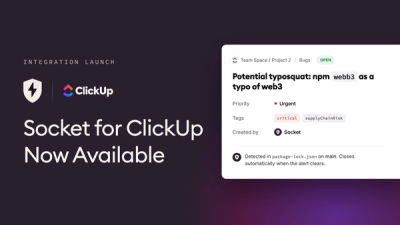
Create ClickUp tasks from Socket alerts, automate ticketing with custom rules, and keep alert and task status synchronized.