

Product
PHP and Composer Support Is Now in Beta
Socket’s PHP and Composer support is now in Beta for all customers, with PHP reachability analysis generally available.
By Trevor Norris, Benjamin Barslev - Aug 21, 2026
Loop engineering toolkit. Run any command on a cadence, in the background, managed from a terminal board. Schedule tests, builds, syncs, or agent prompts.
Loop engineering for your terminal. Run any command on a cadence.
loop-task is a cross-platform CLI that runs shell commands at human-readable intervals. Create loops in the background, manage them from an interactive TUI board, or run them in the foreground. It is the heartbeat primitive for loop engineering: instead of running a task by hand every time, you schedule it once and let it run.



Loop engineering is designing systems that run work on a cadence instead of triggering each run yourself. A loop is a recurring goal: you define a purpose, give it an interval, and let it iterate. It applies to ordinary engineering work just as much as to AI agents: health checks, sync jobs, test watches, data pulls, deploy polls, and report generation are all loops.
loop-task is that heartbeat as a tiny local primitive. Some examples:

# Run the test suite every 30 minutes
loop-task new 30m -- npm test

# Poll a deploy every 10 seconds until you stop it
loop-task new 10s -- curl -sf https://example.com/health

# Re-sync a data export once an hour, scoped to a project
loop-task new 1h --project etl -- ./scripts/sync.sh

# Have a coding agent chip away at a backlog every 30 minutes
loop-task new 30m -- opencode run "find missing translations and translate them, 3 max"
No cron files to maintain and no daemon to babysit: loops persist across reboots, run in the background, and you watch them from a terminal board. The idea is described well in Addy Osmani's Loop Engineering, where scheduled automations are the first of the five pieces of a working loop.
Stay in control. A loop running unattended is also a loop failing unattended. Use
--max-runs, watch the run history on the board, and review what each loop produces. The leverage moves to the loop; the responsibility stays with you.
npm install -g loop-task
loop-task                          # open the board (requires Bun)
loop-task start                    # start the daemon, restore persisted loops
loop-task new 30m -- npm test      # create a background loop
loop-task run --now 10s -- echo hi # run a loop in the foreground
loop-task stop <id>                # stop a frozen loop and kill its child process
loop-task restart                  # kill daemon + all loops, restart fresh
Or run it directly:
npx loop-task
npx loop-task new 30m -- npm test
Install Bun:
npm install -g bun
start, new, and run work with Node alone. The board auto-delegates to Bun when needed.
A loop is a schedule - it defines when something runs. Loops trigger tasks.
| Field | Description |
|---|---|
| Interval | How often to run (30s, 5m, 1h, 1d, 1w) |
| Task | Inline command or a reference to a previously defined task |
| Description | Optional label shown in the list; defaults to the task name |
| Run immediately? | Run once now, then every interval, or wait the first interval |
| Max runs | Stop after N runs, or leave blank to run forever |
A task is an executable unit - it defines what runs. Tasks can chain to other tasks on success or failure.
| Field | Description |
|---|---|
| Name | A short label for the task |
| Command | The full command line |
| On success | Optional task to run when this one exits with code 0 |
| On failure | Optional task to run when this one exits with a non-zero code |
Tasks are reusable - the same task can be referenced by multiple loops or by other tasks' success/failure chains.
A project is an organizational scope for loops. Every loop belongs to exactly one project. The board shows only loops in the currently selected project.
| Field | Description |
|---|---|
| Name | A short label for the project |
| Color | One of six colors: white, cyan, orange, green, red, yellow |
Key behaviors:
localStorage.To use projects from the board:
c to open the Project selector (switch between projects)n creates a new project, e renames the selected project, d deletes it, Esc returns to the boardFrom the CLI:
loop-task project list - list all projectsloop-task project new <name> [--color <color>] - create a projectloop-task project rename <id|name> <new-name> - rename a projectloop-task project color <id|name> <color> - change a project's colorloop-task project delete <id|name> - delete a project (loops move to Default)loop-task new <interval> --project <name> -- <command> - create a loop assigned to a projectColors can be a name (white, cyan, green, yellow, orange, pink) or a #rrggbb hex value.
| Command | Description |
|---|---|
loop-task | Open the interactive board (requires Bun) |
loop-task start | Start the background daemon, restore persisted loops |
loop-task new <interval> -- <command> | Create a background loop (creates an inline task) |
loop-task new <interval> --project <name> -- <command> | Create a loop assigned to a project |
loop-task run <interval> -- <command> | Run a loop in the foreground |
loop-task stop <id> | Stop a loop and interrupt its running child process |
loop-task restart | Kill the daemon and all running loops, then restart fresh |
loop-task project list | List all projects |
loop-task project new <name> [--color <color>] | Create a project |
loop-task project rename <id|name> <new-name> | Rename a project |
loop-task project color <id|name> <color> | Change project color |
loop-task project delete <id|name> | Delete a project (loops move to Default) |
new and run)| Option | Description |
|---|---|
--now | Run immediately before waiting |
--max-runs <n> | Stop after N executions |
--cwd <dir> | Working directory for the command |
--verbose | Show execution details |
-h, --help | Display help |
-V, --version | Display version |
# Run tests every 30 minutes
loop-task new 30m -- npm test

# Run immediately, then every hour
loop-task new --now 1h -- npm test

# Run up to 5 times, then stop
loop-task run --max-runs 5 5m -- npm test

# Agent workflow - schedule an AI task every 30 minutes
loop-task new 30m --now -- opencode run "search missing translations and translate them, 3 maximum" --model "opencode/big-pickle"
# Run in a specific directory
loop-task new 30m --cwd ./packages/api -- npm test

# Verbose mode
loop-task run --verbose 30m -- npm test
When the command has its own flags, use -- to stop argument parsing:
loop-task new 30m -- node -e "console.log('hello')"
The board is the primary way to manage loops and tasks. It shows all loops, their status, run history, and logs in a single terminal interface.
↑/↓, j/k    move selection
Enter       edit selected loop
e           edit loop
d/del       delete loop
p           pause (when waiting) / play (when idle/paused)
s           stop loop (resets schedule)
n           create a new loop
t           create a new task
o           cycle sort mode (order by)
←/→         switch between panels
/           search loops
h           toggle help
esc         quit
Destructive actions (pause, force run, delete) prompt a confirmation before executing.
p) - temporarily halts the loop. Resuming continues the original schedule (e.g., a loop that runs every 6h at :00 paused at 12:00 and resumed at 14:00 will still fire at 16:00).s) - halts the loop and clears the schedule. Playing starts a fresh interval from now (e.g., the same loop stopped at 12:00 and played at 14:00 will fire at 20:00).loop-task (board) ──IPC──► daemon ──► loop 1 ──► task (command)
├──► loop 2 ──► task ──► on-success task
└──► loop 3 ──► task ──► on-failure task
loop-task start or any command that needs it.loop-task start or loop-task new ... spawns the daemon if not runningloop-task opens the board for interactive managementloop-task start restores all persisted loops with correct timing| Format | Description |
|---|---|
10s | 10 seconds |
5m | 5 minutes |
1h | 1 hour |
1d | 1 day |
1w | 1 week |
When tasks are arranged in a chain (on-success or on-failure), context flows between them automatically. This lets later tasks reference output from earlier ones without custom glue.
{"key": "value"}) - each key is merged into the shared context.output key.{{key}} in the command or arguments of any task. Before spawning, {{key}} is replaced with the current value of key from the shared context.{ "id": "42" }, task 2 can use {{id}} and also add { "status": "ok" }. Task 3 sees both.output key. Use JSON with named keys when data must survive across multiple downstream tasks.A four-task chain that finds an issue, marks it in-progress, rewrites it with AI, and relabels it - all without re-querying:
Task 1 (primary): Find an issue to refine
gh issue list --label "to refine" --limit 1 --json number,title,body --jq '{number: .[0].number, title: .[0].title, body: .[0].body}'
stdout: {"number":123,"title":"Fix login","body":"It doesn't work"}
context: { number: 123, title: "Fix login", body: "It doesn't work" }
Task 2 (chain, onSuccess): Mark as in-progress
gh issue edit {{number}} --add-label "refining" --remove-label "to refine"
interpolated: gh issue edit 123 --add-label "refining" --remove-label "to refine"
Task 3 (chain, onSuccess): Rewrite with AI
opencode run "Rewrite this GitHub issue as a detailed user story using project context and return only JSON with fields title and body." --model "opencode/big-pickle"
stdout: {"title":"As a user, I want to log in securely","body":"## Acceptance Criteria\n- Login form validates email\n- ..."}
context: { number: 123, title: "As a user, I want to log in securely", body: "## Acceptance Criteria\n- ..." }
Task 4 (chain, onSuccess): Apply the rewrite and relabel
gh issue edit {{number}} --title "{{title}}" --body "{{body}}" --remove-label "refining" --add-label "to implement"
interpolated: gh issue edit 123 --title "As a user, I want to log in securely" --body "## Acceptance Criteria\n- ..." --remove-label "refining" --add-label "to implement"
number, title, and body via --jq. The primary task cannot use {{key}} interpolation because the chain context is empty when it runs.{{number}} interpolated from task 1's context. It relabels the issue from "to refine" to "refining" - no re-query needed.title and body. Since it uses the same key names, the context is updated with the new values (merge with last-writer-wins).{{number}} (still 123 from task 1), {{title}} and {{body}} (now the rewritten versions from task 3). It applies the edits and relabels the issue as "to implement" - no re-query needed.To avoid the plain-text output clobbering, wrap any value in a named JSON key using --jq (requires --json before --jq):
gh issue list --label "to refine" --json number,title --jq '{number: .[0].number, title: .[0].title}'
This stores { "number": 123, "title": "Fix login" } in context instead of overwriting output.
Requires Bun >= 1.2 for package management and the board, and Node.js >= 20 for the CLI and daemon.
bun install
npm run build
Run locally:
bun run dev                                    # board
node dist/entry.js new --now 30m -- npm test   # background loop
node dist/entry.js run --now --max-runs 1 10s -- echo hello  # foreground
Quality gates:
bun run typecheck
bun run lint
bun run test
npm run build
MIT
FAQs
Loop engineering toolkit. Run any command on a cadence, in the background, managed from a terminal board. Schedule tests, builds, syncs, or agent prompts.
The npm package loop-task receives a total of 93 weekly downloads. As such, loop-task popularity was classified as not popular.
We found that loop-task demonstrated a healthy version release cadence and project activity because the last version was released less than a year ago. It has 1 open source maintainer collaborating on the project.
Product
Socket’s PHP and Composer support is now in Beta for all customers, with PHP reachability analysis generally available.
Product
Socket is bringing experimental protection to Firefox, scanning 97,000+ extensions in Mozilla's official directory for malware and risky updates.
Research
/Security News
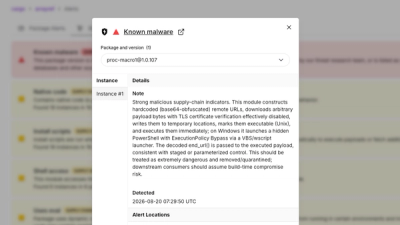
Three compromised Rust crates pulled in a malicious dependency that downloaded and executed cross-platform malware during Cargo builds.