orquesta-cli
AI-powered coding assistant with local LLM support - the self-hosted alternative to Claude CLI.
Use your own LLM (vLLM, Ollama, LM Studio, Azure OpenAI, or any OpenAI-compatible API) as a full coding agent - no cloud dependency, no subscription costs.
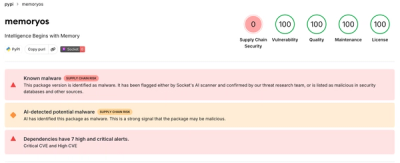
⚠️ Security Warning
IMPORTANT: Orquesta CLI gives AI models the ability to execute commands on your system. Please read SECURITY.md before use.
Quick Security Tips:
- ✅ Use only trusted LLM endpoints
- ✅ Enable manual approval for production (
autoApprove: false)
- ✅ Run in isolated environments (Docker/VM)
- ✅ Review commands before execution
- ❌ Never expose sensitive credentials as environment variables
Why orquesta-cli?
Freedom from cloud dependencies - Run your own LLM infrastructure:
| LLM Provider | Anthropic (cloud) | Any OpenAI-compatible endpoint |
| Hosting | Subscription required | Self-hosted / on-premises |
| Options | Claude only | vLLM, Ollama, LM Studio, Azure OpenAI, local models |
| Cost | Per-token pricing | Your infrastructure |
| Privacy | Data sent to Anthropic | Data stays local |
| Integration | - | Works with orquesta-agent |
Key Features
| Zero Cloud Dependency | Runs entirely on your local/on-prem LLM. Your code never leaves your network. |
| No API Cost | Use open-source models (Llama, Qwen, DeepSeek, etc.) for free. |
| Any OpenAI-Compatible API | Works with vLLM, Ollama, LM Studio, Azure OpenAI, Google Gemini, and more. |
| Autonomous Coding Agent | Reads, searches, edits, and creates code files - not just chat. |
| Plan & Execute | Breaks complex tasks into TODO steps and executes them sequentially. |
| Safe by Default | Supervised mode requires your approval before any file modification. |
| Office Automation | Control Excel, Word, PowerPoint directly via PowerShell/COM (Windows). |
| Browser Automation | Chrome/Edge CDP control - navigate, click, screenshot, scrape data. |
| Your Own Browser | Drive the Chrome you are already using — real profile, real logins — via the Orquesta extension. |
| orquesta-agent Compatible | Works seamlessly with orquesta-agent for remote execution |
Installation
npm install -g orquesta-cli
Or run directly with npx:
npx orquesta-cli
Quick Start
Interactive Mode
orquesta
This launches the full interactive UI with plan & execute, file browser, session history, etc.
One-Shot Prompt Execution
orquesta -p "fix the bug in auth.ts"
This executes the prompt and exits - compatible with orquesta-agent for remote execution.
Configuration
orquesta
/settings
Any OpenAI-compatible API works:
- vLLM:
http://localhost:8000/v1
- Ollama:
http://localhost:11434/v1
- LM Studio:
http://localhost:1234/v1
- Azure OpenAI:
https://YOUR_RESOURCE.openai.azure.com/openai/deployments/YOUR_DEPLOYMENT
- Google Gemini: Compatible with OpenAI SDK
- Any internal LLM server
Configuration is stored in ~/.orquesta-cli/config.json.
Usage with orquesta-agent
orquesta-cli works seamlessly with orquesta-agent for remote execution:
npm install -g orquesta-cli
orquesta
npx orquesta-agent --token <your-token>
orquesta-agent will execute prompts using orquesta-cli with your local LLM.
Commands & Features
Plan & Execute
Automatically decomposes requests into TODO steps and executes them:
You: Add a logging system to the project

TODO List                            1/3
  [x] Create logger.ts
  [ ] Add imports to existing code
  [ ] Apply error handling
Supervised Mode
Every file modification requires your explicit approval:
- Tab to toggle between Auto / Supervised mode
- Only file modification tools need approval (read/search are always allowed)
- Reject with feedback to guide the agent's next attempt
Slash Commands
/help | Show available commands |
/clear | Reset conversation |
/compact | Compress conversation |
/load | Load saved session |
/model | Switch LLM model |
/settings | Settings menu |
/usage | Token usage statistics |
/sync | Sync LLM configs with Orquesta dashboard |
/tool | Toggle optional tools (browser, browser extension, office) |
Keyboard Shortcuts
Ctrl+C | Exit |
ESC | Interrupt current task |
Tab | Toggle Auto / Supervised |
@ | File browser |
/ | Command autocomplete |
Command-Line Options
orquesta [options]

Options:
  -p, --print <prompt>           Execute a prompt and exit (non-interactive)
  --token <token>                Connect to Orquesta with CLI token (oclt_xxx)
  --switch-project [projectId]   Switch to different project
  --status                       Show Orquesta connection status
  --disconnect                   Disconnect from Orquesta
  --sync                         Sync LLM configs with dashboard
  --dangerously-skip-permissions Skip all permission prompts (auto-approve)
  --verbose                      Enable verbose logging
  --debug                        Enable debug logging
  --llm-log                      Log LLM requests/responses
  --eval                         Evaluation mode (NDJSON event streaming)
  -V, --version                  Output version number
Orquesta Dashboard Integration
Connect to Orquesta to sync LLM configurations across your team:
orquesta --token oclt_xxxxx
orquesta --switch-project
orquesta --status
orquesta --sync
Office Automation (60+ Tools)
Windows only - Control Microsoft Office via PowerShell/COM:
| Excel | Read/write cells, create charts, formatting, conditional formatting, pivot tables, formulas |
| Word | Write text, headers, tables, images, footnotes, find/replace, styles, TOC |
| PowerPoint | Create slides, add text/images/shapes, apply themes, speaker notes |
Browser Automation
Chrome/Edge automation via Chrome DevTools Protocol:
- Navigate pages, click elements, fill forms
- Take screenshots, extract text
- No external server required
The browser_* tools launch their own Chrome with a clean profile, so the
pages they see are always logged out. Enable them with /tool → Browser.
Your Own Browser (Orquesta extension)
The browser_ext_* tools drive the browser you are already using — your real
profile, your real sessions — instead of launching a clean one. That is the whole
point: an authenticated dashboard, a staging site behind SSO, or a page whose bug
only appears once you are logged in.
Two steps, both local:
/tool
Enabling the group starts the bridge — a small daemon on 127.0.0.1:8791-8798
that the extension talks to — so there is nothing to run by hand. It is spawned
detached and outlives the CLI on purpose: it holds the pairing, so short
orquesta -p runs and several sessions share one browser without pairing again.
Its log is ~/.orquesta-cli/browser-bridge.log.
Run it yourself with npx orquesta-bridge when you want to watch it, point
ORQUESTA_BRIDGE_CMD at a checkout to develop against one, and set
ORQUESTA_BRIDGE_AUTOSTART=0 to stop the CLI starting one at all.
The extension lives in its own repo (orquesta-extension)
and is loaded unpacked while it is unreleased.
browser_ext_status | Is the bridge up, is a browser paired |
browser_ext_tabs / _open / _reload | List tabs, open a URL, reload |
browser_ext_click / _fill / _press / _select | Interact with the page |
browser_ext_text / _html / _eval | Read the page, run JS in it |
browser_ext_screenshot | Capture the visible tab |
browser_ext_console / _network | Console messages and requests |
browser_ext_wait | Wait for a selector or navigation |
browser_ext_embed | Inject the Orquesta embed widget into the page |
Nothing leaves the machine: the CLI talks to the bridge over loopback with a
0600 token in ~/.orquesta-cli/, and the bridge talks to the extension over a
paired local WebSocket.
MCP (Model Context Protocol)
orquesta-cli is its own MCP client — it does not shell out to Claude Code or any
other CLI. Servers connect at startup (interactive and -p), and their tools are
registered as mcp__<server>__<tool>, so the model uses them like any built-in tool.
orquesta mcp list
orquesta mcp list --probe
orquesta mcp add fs -- npx -y @modelcontextprotocol/server-filesystem .
orquesta mcp add api --url https://example.com/mcp --header "Authorization: Bearer $TOKEN"
orquesta mcp add fetch --builtin fetch
orquesta mcp remove fs
Transports: stdio, Streamable HTTP, SSE, and builtin (bundled).
Configuration sources, lowest to highest precedence — a later one overrides an
earlier one with the same server name:
| built-in | Bundled servers, see below |
~/.claude.json | Inherited from Claude Code, so servers added with claude mcp add work here too. Turn off with orquesta mcp inherit off |
~/.orquesta-cli/config.json | What orquesta mcp add writes |
<project>/.mcp.json | The Claude Code project convention, read verbatim |
<project>/.orquesta/mcp.json | Same content, under the Orquesta folder |
Built-in servers are compiled into the CLI and linked in-process — no child
process, no npx, no Node.js, nothing to install. They are the only servers that
work on a machine running the standalone binary with no Node present:
fetch | Retrieve http/https URLs as text (HTML converted to readable text) |
External MCP servers are npm packages, so they still need Node.js on the machine.
When it is missing, the server is reported with that reason instead of a bare
spawn error.
Session Management
- Save and restore conversation history
- Auto-context compression at 80% capacity
- Resume work exactly where you left off
Development
git clone https://github.com/orquesta/orquesta.git
cd orquesta/packages/orquesta-cli
npm install
npm run build
npm start
Requirements
- Node.js v20+
- npm v10+
- Git
- Windows (for Office/Browser automation via PowerShell)
Comparison with Claude CLI
Both tools are AI-powered coding assistants but differ in architecture:
Claude CLI (Official)
- ✅ Direct Anthropic API access
- ✅ Claude 4.5/4.6 models
- ✅ Official support
- ❌ Requires subscription
- ❌ Cloud-only
- ❌ Data sent to Anthropic
orquesta-cli
- ✅ Self-hosted LLM support
- ✅ Any OpenAI-compatible model
- ✅ Full data privacy
- ✅ No subscription needed (BYO compute)
- ✅ Plan & Execute architecture
- ✅ Office/Browser automation
- ❌ Model quality depends on your LLM choice
Use Claude CLI if: You want the best model quality and have a subscription.
Use orquesta-cli if: You need data privacy, self-hosting, or want to use specific models (local, on-prem, etc.).
License
MIT
Links