
Research
/Security News
Popular npm Packages in the keyv and Cacheable Namespaces Compromised in Active Supply Chain Attack
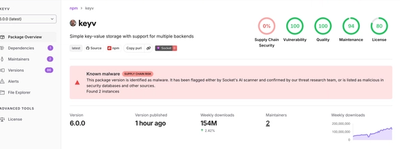
Popular npm packages keyv and cacheable compromised.
By Socket Research Team - Aug 04, 2026
windows-computer-use-mcp
Advanced tools
Windows Computer Use MCP Server — control mouse, keyboard, screenshot, clipboard, and apps via MCP protocol
English | 中文
An MCP (Model Context Protocol) server that provides desktop automation tools for Windows. Control mouse, keyboard, take screenshots, manage clipboard, and interact with applications — all through the MCP protocol.
Note: This server only runs on Windows.
| Tool | Description |
|---|---|
screenshot | Take a screenshot of the current screen |
zoom | Take a screenshot of a specific region |
mouse_move | Move the mouse cursor to coordinates |
left_click | Left-click at coordinates or current position |
right_click | Right-click at coordinates |
double_click | Double-click at coordinates |
left_click_drag | Click and drag from one point to another |
scroll | Scroll the mouse wheel |
type | Type a string of text |
key | Press a key combination (e.g. ctrl+c, alt+f4) |
hold_key | Hold a key for a duration |
cursor_position | Get current cursor position |
list_running_applications | List all running apps with visible windows |
get_frontmost_application | Get the currently focused app |
open_application | Open an app by name or path |
list_displays | List connected displays |
read_clipboard | Read clipboard text |
write_clipboard | Write text to clipboard |
npm install -g windows-computer-use-mcp
npx windows-computer-use-mcp
git clone https://github.com/hiphopanda/windows-computer-use-mcp.git
cd windows-computer-use-mcp
bun install
bun run build
Add to your MCP client settings (e.g. Claude Desktop):
{
  "mcpServers": {
    "computer-use": {
      "type": "stdio",
      "command": "npx",
      "args": ["windows-computer-use-mcp"]
    }
  }
}
Or if installed globally:
{
  "mcpServers": {
    "computer-use": {
      "type": "stdio",
      "command": "windows-computer-use-mcp"
    }
  }
}
bun install          # Install dependencies
bun run dev          # Run in development mode
bun run build        # Build to dist/
bun run start        # Run built version
Bun.spawnuser32.dll) loaded at runtime — no precompiled native modules needed一个基于 MCP(Model Context Protocol)协议的 Windows 桌面自动化服务器。通过 MCP 协议控制鼠标、键盘、截屏、剪贴板,以及管理应用程序。
注意:本服务器仅支持 Windows 系统。
| 工具 | 说明 |
|---|---|
screenshot | 截取当前屏幕 |
zoom | 截取指定区域 |
mouse_move | 移动鼠标到指定坐标 |
left_click | 左键点击 |
right_click | 右键点击 |
double_click | 双击 |
left_click_drag | 左键拖拽 |
scroll | 滚动鼠标滚轮 |
type | 输入文本 |
key | 按键组合(如 ctrl+c、alt+f4) |
hold_key | 长按按键 |
cursor_position | 获取光标当前位置 |
list_running_applications | 列出所有运行中的应用 |
get_frontmost_application | 获取当前前台应用 |
open_application | 按名称或路径打开应用 |
list_displays | 列出已连接的显示器 |
read_clipboard | 读取剪贴板文本 |
write_clipboard | 写入文本到剪贴板 |
npm install -g windows-computer-use-mcp
npx windows-computer-use-mcp
git clone https://github.com/hiphopanda/windows-computer-use-mcp.git
cd windows-computer-use-mcp
bun install
bun run build
在 MCP 客户端配置中添加(如 Claude Desktop):
{
  "mcpServers": {
    "computer-use": {
      "type": "stdio",
      "command": "npx",
      "args": ["windows-computer-use-mcp"]
    }
  }
}
或全局安装后:
{
  "mcpServers": {
    "computer-use": {
      "type": "stdio",
      "command": "windows-computer-use-mcp"
    }
  }
}
bun install          # 安装依赖
bun run dev          # 开发模式运行
bun run build        # 构建到 dist/
bun run start        # 运行构建产物
Bun.spawn 执行 PowerShell 脚本user32.dll)在运行时加载 — 无需预编译原生模块FAQs
Windows Computer Use MCP Server — control mouse, keyboard, screenshot, clipboard, and apps via MCP protocol
We found that windows-computer-use-mcp demonstrated a healthy version release cadence and project activity because the last version was released less than a year ago. It has 1 open source maintainer collaborating on the project.
Did you know?

Socket for GitHub automatically highlights issues in each pull request and monitors the health of all your open source dependencies. Discover the contents of your packages and block harmful activity before you install or update your dependencies.
Research
/Security News
Popular npm packages keyv and cacheable compromised.

Security News
A misconfiguration gave three Anthropic models internet access, and one, believing it was in a simulation, shipped a credential-stealing package to PyPI.

Security News
/Company News
Socket has joined the new Composer and Packagist sponsorship program as a launch sponsor, supporting the team that keeps PHP's package ecosystem secure.