

Product
PHP and Composer Support Is Now in Beta
Socket’s PHP and Composer support is now in Beta for all customers, with PHP reachability analysis generally available.
By Trevor Norris, Benjamin Barslev - Aug 21, 2026
wisewall-mcp
Advanced tools
MCP server for managing WiseWall sites from an AI coding assistant: deploy, configure, manage domains/DNS/secrets/plans, without opening a dashboard.

One command puts your site live on the web. WiseWall actually hosts it — not a script bolted onto hosting elsewhere — and turns it into a real product on top: magic-link accounts, a per-member database, Polar-powered payments, and a server-side paywall. This package lets your coding agent drive all of it: deploy, configure a custom domain and DNS, manage secrets, create plans, without ever opening a dashboard. Works the same way with Claude Code, Claude Desktop, Cursor, Windsurf, VS Code (Copilot agent mode), Codex CLI, and Gemini CLI — or any other MCP-compatible client, since it's plain stdio MCP underneath.
No install step — npx runs it on demand. Nothing to sign up for beyond your email.
One command, and it's live — skip the setup below entirely for a first look, no account at all:
npx -y wisewall-mcp deploy
No directory needed — it checks the current folder for a dist/build/out/public subfolder and
deploys that, or the current folder itself if none exist (the common case for a plain static site with no
build step). Pass one explicitly to override (deploy ./dist), and a name if you want one
(deploy ./dist my-site or just deploy my-site to keep auto-detecting the folder). Prints a live preview
URL immediately, plus a claim link. Click the claim link within 24 hours to add the site to your account (a
magic-link email, same as Connect below) — otherwise it's deleted. Once you're ready to manage
it from an agent (custom domain, plans, secrets), connect normally and use deploy/create_site as usual.
Already have a project instead of an empty folder? Run launch instead — same directory
auto-detection/arguments as deploy, plus it scaffolds your coding agent's instructions file (CLAUDE.md
and equivalents) with WiseWall's gating conventions first, printing a checklist of anything in the existing
code worth double-checking. If your project has its own build step (a package.json with a build
script), launch detects that and stops to tell you the exact command to run first, rather than deploying
an empty or stale folder — it never runs a build itself. Re-running launch afterward picks up the result:
npx -y wisewall-mcp launch
npx -y wisewall-mcp login you@example.com
Click the link that arrives by email — the command detects the click automatically and prints a token scoped to your own sites (never the platform's own credentials). It's shown once; copy it now.
The server config is the same everywhere — command: npx, args: ["-y", "wisewall-mcp"], and
WISEWALL_TOKEN in the environment — only the file it goes in (and, for one client, the JSON shape)
differs.
claude mcp add, or .mcp.jsonclaude mcp add wisewall --scope user --env WISEWALL_TOKEN=wisewall_... -- npx -y wisewall-mcp
See Bootstrapping from a brand-new Claude Code session below for a copy-pasteable one-liner that doesn't require having a token yet.
claude_desktop_config.jsonmacOS: ~/Library/Application Support/Claude/claude_desktop_config.json · Windows: %APPDATA%\Claude\claude_desktop_config.json (Settings → Developer → Edit Config also opens it)
{
  "mcpServers": {
    "wisewall": {
      "command": "npx",
      "args": ["-y", "wisewall-mcp"],
      "env": { "WISEWALL_TOKEN": "wisewall_..." }
    }
  }
}
.cursor/mcp.json (project) or ~/.cursor/mcp.json (global){
"mcpServers": {
"wisewall": {
"command": "npx",
"args": ["-y", "wisewall-mcp"],
"env": { "WISEWALL_TOKEN": "wisewall_..." }
}
}
}
~/.codeium/windsurf/mcp_config.json{
"mcpServers": {
"wisewall": {
"command": "npx",
"args": ["-y", "wisewall-mcp"],
"env": { "WISEWALL_TOKEN": "wisewall_..." }
}
}
}
.vscode/mcp.jsonVS Code uses servers, not mcpServers, and each entry needs an explicit type:
{
  "servers": {
    "wisewall": {
      "type": "stdio",
      "command": "npx",
      "args": ["-y", "wisewall-mcp"],
      "env": { "WISEWALL_TOKEN": "wisewall_..." }
    }
  }
}
~/.codex/config.toml (or project .codex/config.toml)Codex's config is TOML, not JSON:
[mcp_servers.wisewall]
command = "npx"
args = ["-y", "wisewall-mcp"]
env = { WISEWALL_TOKEN = "wisewall_..." }
~/.gemini/settings.json (or project .gemini/settings.json){
"mcpServers": {
"wisewall": {
"command": "npx",
"args": ["-y", "wisewall-mcp"],
"env": { "WISEWALL_TOKEN": "wisewall_..." }
}
}
}
Get a token first with npx -y wisewall-mcp login you@example.com (see Connect above) — then
paste it in place of wisewall_....
Once connected, ask your agent to run the init tool (or run it yourself: it's exposed as one of
wisewall-mcp's tools, callable from any of the clients above). It scaffolds a project-instructions
file — CLAUDE.md, .cursor/rules/wisewall.mdc, .windsurf/rules/wisewall.md,
.github/copilot-instructions.md, AGENTS.md, or GEMINI.md, depending on which client(s) you pass —
with WiseWall's gating conventions (premium paths vs. sign-in-only paths, localStorage, secrets), so
whichever agent works on this project next follows them from the first prompt instead of after the fact.
Defaults to writing all six, idempotently — safe to run again later, and harmless for a client you don't
actually use.
Already have an existing project instead of a fresh folder? Run convert instead — same scaffolding as
init, plus a checklist of concrete things to go find and fix in that existing code (client-side-only
paywall logic to remove, hardcoded API keys to move to set_secret, which paths actually need
protectedPaths/authOnlyPaths) so it actually follows WiseWall's conventions, not just documents them.
Tell a session that knows nothing about WiseWall yet to "connect me to WiseWall," and give it just your email address — the one thing it can't guess on its own. It can do the rest itself, no cloning or building required:
npx -y wisewall-mcp login you@example.com
Once the token prints (after you click the emailed link), it registers the server with Claude Code — ideally at user scope, so it's available in every project, not just this one:
claude mcp add wisewall --scope user \
  --env WISEWALL_TOKEN=<the token printed above> \
  -- npx -y wisewall-mcp
(Exact flags vary by Claude Code version — claude mcp add --help is the source of truth.)
From then on the connection persists: future sessions see the server already configured and discover the tools directly over MCP.
Self-hosting, or targeting a test environment instead of platform.wisewall.net? Pass WISEWALL_API_URL
explicitly, for both login and the server itself:
WISEWALL_API_URL=https://your-instance.example.com npx -y wisewall-mcp login you@example.com
27 tools, covering the same ground as the dashboard:
| Category | Tools |
|---|---|
| Sites | list_sites, create_site (name + dist_dir), deploy (site_id + dist_dir), delete_site |
| Project setup | init (scaffolds this project's agent-instructions file(s) with WiseWall's conventions — see above), convert (same, for a project that already has code in it — also returns a compliance checklist) |
| Config | get_config, set_config |
| Domain / DNS | get_domain, set_domain, get_zone, create_dns_record, delete_dns_record, activate_custom_domain, redirect_www_to_root |
| Secrets | list_secrets, set_secret, delete_secret (values are never returned once written) |
| Plans | list_plans, create_plan, update_plan_paths, archive_plan |
| Members | list_members (read-only), export_members (bulk JSON export, read-only) |
| Tokens | list_tokens, create_token, revoke_token |
create_site and deploy read a local folder (e.g. a build's ./dist) and upload it — nothing writes to
platform storage directly. Every read-only tool is annotated readOnlyHint; every irreversible one
(delete, archive) is destructiveHint, so a well-behaved MCP client can add extra confirmation on the
actions that actually warrant it.
A token only ever unlocks the sites on its own account. login proves you own the email address via a
magic link sent by the platform itself — this command never asks for a password, and the platform never
stores one to begin with.
Full product docs: wisewall.net · Dashboard: platform.wisewall.net
FAQs
MCP server for managing WiseWall sites from an AI coding assistant: deploy, configure, manage domains/DNS/secrets/plans, without opening a dashboard.
We found that wisewall-mcp demonstrated a healthy version release cadence and project activity because the last version was released less than a year ago. It has 1 open source maintainer collaborating on the project.
Product
Socket’s PHP and Composer support is now in Beta for all customers, with PHP reachability analysis generally available.
Product
Socket is bringing experimental protection to Firefox, scanning 97,000+ extensions in Mozilla's official directory for malware and risky updates.
Research
/Security News
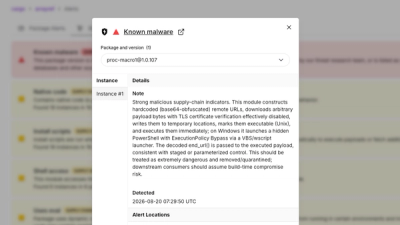
Three compromised Rust crates pulled in a malicious dependency that downloaded and executed cross-platform malware during Cargo builds.