
Product
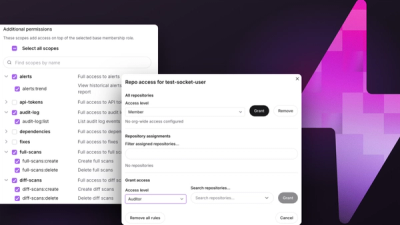
Introducing Repository Access Permissions and Custom Roles
Socket now supports Custom Roles and Repository Access Permissions so organizations can control who can access specific repositories and actions.
By Joe Werle - Jun 19, 2026
@opentui/react
Advanced tools
A React renderer for building terminal user interfaces using OpenTUI core. Create rich, interactive console applications with familiar React patterns and components.
bun install @opentui/react @opentui/core react
import { render } from "@opentui/react"

function App() {
  return (
    <group>
      <text fg="#00FF00">Hello, Terminal!</text>
      <box title="Welcome" padding={2}>
        <text>Welcome to OpenTUI with React!"</text>
      </box>
    </group>
  )
}

render(<App />)
OpenTUI React provides several built-in components that map to OpenTUI core renderables:
<text> - Display text with styling<box> - Container with borders and layout<group> - Layout container for organizing components<input> - Text input field<select> - Selection dropdown<tab-select> - Tab-based selection<ascii-font> - Display ASCII art text with different font stylesComponents can be styled using props or the style prop:
// Direct props
<text fg="#FF0000">Hello</text>

// Style prop
<box style={{ backgroundColor: "blue", padding: 2 }}>
  <text>Styled content</text>
</box>
render(element, config?)Renders a React element to the terminal.
import { render } from "@opentui/react"

await render(<App />, {
  // Optional renderer configuration
  exitOnCtrlC: false,
})
Parameters:
element: React element to renderconfig?: Optional CliRendererConfig objectuseRenderer()Access the OpenTUI renderer instance.
import { useRenderer } from "@opentui/react"

function MyComponent() {
  const renderer = useRenderer()

  useEffect(() => {
    renderer.toggleDebugOverlay()
  }, [])

  return <text>Debug available</text>
}
useKeyboard(handler)Handle keyboard events.
import { useKeyboard } from "@opentui/react"

function MyComponent() {
  useKeyboard((key) => {
    if (key.name === "escape") {
      process.exit(0)
    }
  })

  return <text>Press ESC to exit</text>
}
useOnResize(callback)Handle terminal resize events.
import { useOnResize, useRenderer } from "@opentui/react"
import { useEffect } from "react"

function MyComponent() {
  const renderer = useRenderer()

  useEffect(() => {
    renderer.console.show()
  }, [renderer])

  useOnResize((width, height) => {
    console.log(`Terminal resized to ${width}x${height}`)
  })

  return <text>Resize-aware component</text>
}
useTerminalDimensions()Get current terminal dimensions and automatically update when the terminal is resized.
import { useTerminalDimensions } from "@opentui/react"

function MyComponent() {
  const { width, height } = useTerminalDimensions()

  return (
    <group>
      <text>
        Terminal dimensions: {width}x{height}
      </text>
      <box style={{ width: Math.floor(width / 2), height: Math.floor(height / 3) }}>
        <text>Half-width, third-height box</text>
      </box>
    </group>
  )
}
Returns: An object with width and height properties representing the current terminal dimensions.
Display text with rich formatting.
import { bold, fg, t } from "@opentui/core"

function TextExample() {
  return (
    <group>
      {/* Simple text */}
      <text>Hello World</text>

      {/* Rich text with children */}
      <text>{bold(fg("red")("Bold Red Text"))}</text>

      {/* Template literals */}
      <text>{t`${bold("Bold")} and ${fg("blue")("Blue")}`}</text>
    </group>
  )
}
Container with borders and layout capabilities.
function BoxExample() {
  return (
    <group flexDirection="column">
      {/* Basic box */}
      <box>
        <text>Simple box</text>
      </box>

      {/* Box with title and styling */}
      <box title="Settings" borderStyle="double" padding={2} backgroundColor="blue">
        <text>Box content</text>
      </box>

      {/* Styled box */}
      <box
        style={{
          width: 40,
          height: 10,
          margin: 1,
          alignItems: "center",
          justifyContent: "center",
        }}
      >
        <text>Centered content</text>
      </box>
    </group>
  )
}
Layout container for organizing multiple components.
function GroupExample() {
  return (
    <group flexDirection="row">
      <box>
        <text>Left</text>
      </box>
      <box>
        <text>Right</text>
      </box>
    </group>
  )
}
Text input field with event handling.
import { useState } from "react"

function InputExample() {
  const [value, setValue] = useState("")
  const [focused, setFocused] = useState(true)

  return (
    <box title="Enter your name" style={{ height: 3 }}>
      <input
        placeholder="Type here..."
        focused={focused}
        onInput={setValue}
        onSubmit={(value) => console.log("Submitted:", value)}
        style={{
          focusedBackgroundColor: "#333333",
        }}
      />
    </box>
  )
}
Dropdown selection component.
import type { SelectOption } from "@opentui/core"
import { useState } from "react"

function SelectExample() {
  const [selectedIndex, setSelectedIndex] = useState(0)

  const options: SelectOption[] = [
    { name: "Option 1", description: "Option 1 description", value: "opt1" },
    { name: "Option 2", description: "Option 2 description", value: "opt2" },
    { name: "Option 3", description: "Option 3 description", value: "opt3" },
  ]

  return (
    <box style={{ height: 24 }}>
      <select
        style={{ height: 22 }}
        options={options}
        focused={true}
        onChange={(index, option) => {
          setSelectedIndex(index)
          console.log("Selected:", option)
        }}
      />
    </box>
  )
}
Display ASCII art text with different font styles.
import { measureText } from "@opentui/core"
import { useState } from "react"

function ASCIIFontExample() {
  const text = "ASCII"
  const [font, setFont] = useState<"block" | "shade" | "slick" | "tiny">("tiny")

  const { width, height } = measureText({
    text,
    font,
  })

  return (
    <group style={{ paddingLeft: 1, paddingRight: 1 }}>
      <box
        style={{
          height: 8,
          marginBottom: 1,
        }}
      >
        <select
          focused
          onChange={(_, option) => setFont(option?.value)}
          showScrollIndicator
          options={[
            {
              name: "Tiny",
              description: "Tiny font",
              value: "tiny",
            },
            {
              name: "Block",
              description: "Block font",
              value: "block",
            },
            {
              name: "Slick",
              description: "Slick font",
              value: "slick",
            },
            {
              name: "Shade",
              description: "Shade font",
              value: "shade",
            },
          ]}
          style={{ flexGrow: 1 }}
        />
      </box>

      <ascii-font style={{ width, height }} text={text} font={font} />
    </group>
  )
}
import { useState, useCallback } from "react"
import { render, useKeyboard } from "@opentui/react"

function LoginForm() {
  const [username, setUsername] = useState("")
  const [password, setPassword] = useState("")
  const [focused, setFocused] = useState<"username" | "password">("username")
  const [status, setStatus] = useState("idle")

  useKeyboard((key) => {
    if (key.name === "tab") {
      setFocused((prev) => (prev === "username" ? "password" : "username"))
    }
  })

  const handleSubmit = useCallback(() => {
    if (username === "admin" && password === "secret") {
      setStatus("success")
    } else {
      setStatus("error")
    }
  }, [username, password])

  return (
    <group style={{ padding: 2, flexDirection: "column" }}>
      <text fg="#FFFF00">Login Form</text>

      <box title="Username" style={{ width: 40, height: 3, marginTop: 1 }}>
        <input
          placeholder="Enter username..."
          onInput={setUsername}
          onSubmit={handleSubmit}
          focused={focused === "username"}
        />
      </box>

      <box title="Password" style={{ width: 40, height: 3, marginTop: 1 }}>
        <input
          placeholder="Enter password..."
          onInput={setPassword}
          onSubmit={handleSubmit}
          focused={focused === "password"}
        />
      </box>

      <text
        style={{
          fg: status === "success" ? "green" : status === "error" ? "red" : "#999",
        }}
      >
        {status.toUpperCase()}
      </text>
    </group>
  )
}

render(<LoginForm />)
import { useState, useEffect } from "react"
import { render } from "@opentui/react"

function Counter() {
  const [count, setCount] = useState(0)

  useEffect(() => {
    const interval = setInterval(() => {
      setCount((prev) => prev + 1)
    }, 1000)

    return () => clearInterval(interval)
  }, [])

  return (
    <box title="Counter" style={{ padding: 2 }}>
      <text fg="#00FF00">{`Count: ${count}`}</text>
    </box>
  )
}

render(<Counter />)
import { blue, bold, red, t, underline } from "@opentui/core"
import { render } from "@opentui/react"

function StyledTextShowcase() {
  return (
    <group style={{ flexDirection: "column" }}>
      <text>Simple text</text>
      <text>{bold("Bold text")}</text>
      <text>{underline("Underlined text")}</text>
      <text>{red("Red text")}</text>
      <text>{blue("Blue text")}</text>
      <text>{bold(red("Bold red text"))}</text>
      <text>{t`${bold("Bold")} and ${blue("blue")} combined`}</text>
    </group>
  )
}

render(<StyledTextShowcase />)
You can create custom components by extending OpenTUI's base renderables:
import { BoxRenderable, OptimizedBuffer, RGBA } from "@opentui/core"
import { extend, render } from "@opentui/react"

// Create custom component class
class ButtonRenderable extends BoxRenderable {
  private _label: string = "Button"

  constructor(id: string, options: any) {
    super(id, options)
    this.borderStyle = "single"
    this.padding = 1
  }

  protected renderSelf(buffer: OptimizedBuffer): void {
    super.renderSelf(buffer)

    const centerX = this.x + Math.floor(this.width / 2 - this._label.length / 2)
    const centerY = this.y + Math.floor(this.height / 2)

    buffer.drawText(this._label, centerX, centerY, RGBA.fromInts(255, 255, 255, 255))
  }

  set label(value: string) {
    this._label = value
    this.needsUpdate()
  }
}

// Add TypeScript support
declare module "@opentui/react" {
  interface OpenTUIComponents {
    button: typeof ButtonRenderable
  }
}

// Register the component
extend({ button: ButtonRenderable })

// Use in JSX
function App() {
  return (
    <group>
      <button label="Click me!" style={{ backgroundColor: "blue" }} />
      <button label="Another button" style={{ backgroundColor: "green" }} />
    </group>
  )
}

render(<App />)
For optimal TypeScript support, configure your tsconfig.json:
{
  "compilerOptions": {
    "lib": ["ESNext", "DOM"],
    "target": "ESNext",
    "module": "ESNext",
    "moduleResolution": "bundler",
    "jsx": "react-jsx",
    "jsxImportSource": "@opentui/react",
    "strict": true,
    "skipLibCheck": true
  }
}
FAQs
React renderer for building terminal user interfaces using OpenTUI core
The npm package @opentui/react receives a total of 87,927 weekly downloads. As such, @opentui/react popularity was classified as popular.
We found that @opentui/react demonstrated a healthy version release cadence and project activity because the last version was released less than a year ago. It has 3 open source maintainers collaborating on the project.
Did you know?

Socket for GitHub automatically highlights issues in each pull request and monitors the health of all your open source dependencies. Discover the contents of your packages and block harmful activity before you install or update your dependencies.
Product
Socket now supports Custom Roles and Repository Access Permissions so organizations can control who can access specific repositories and actions.
Product
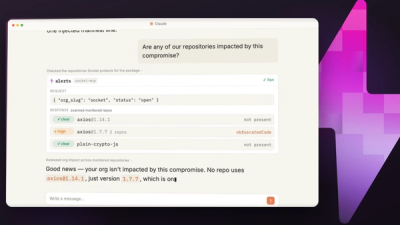
Socket MCP now lets AI assistants review org alerts, investigate threats using the Socket threat feed, and inspect package files in addition to dependency scoring.
Product
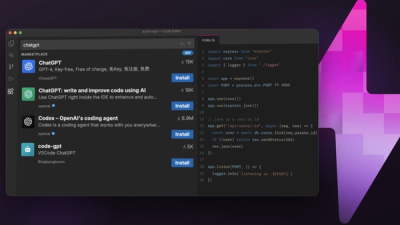
Socket Firewall blocks malicious VS Code and Open VSX extensions before install, protecting developers from compromised editor marketplaces.